EU AI Act Compliance - AI register & evidence
Coverage dashboard, AI register, change log and compliance dossier.
Labelling is one half of the job. The other half is being able to show what you did. The extension gives you four tools for that: the AI register, the coverage dashboard, the change log and the compliance dossier.
The AI register
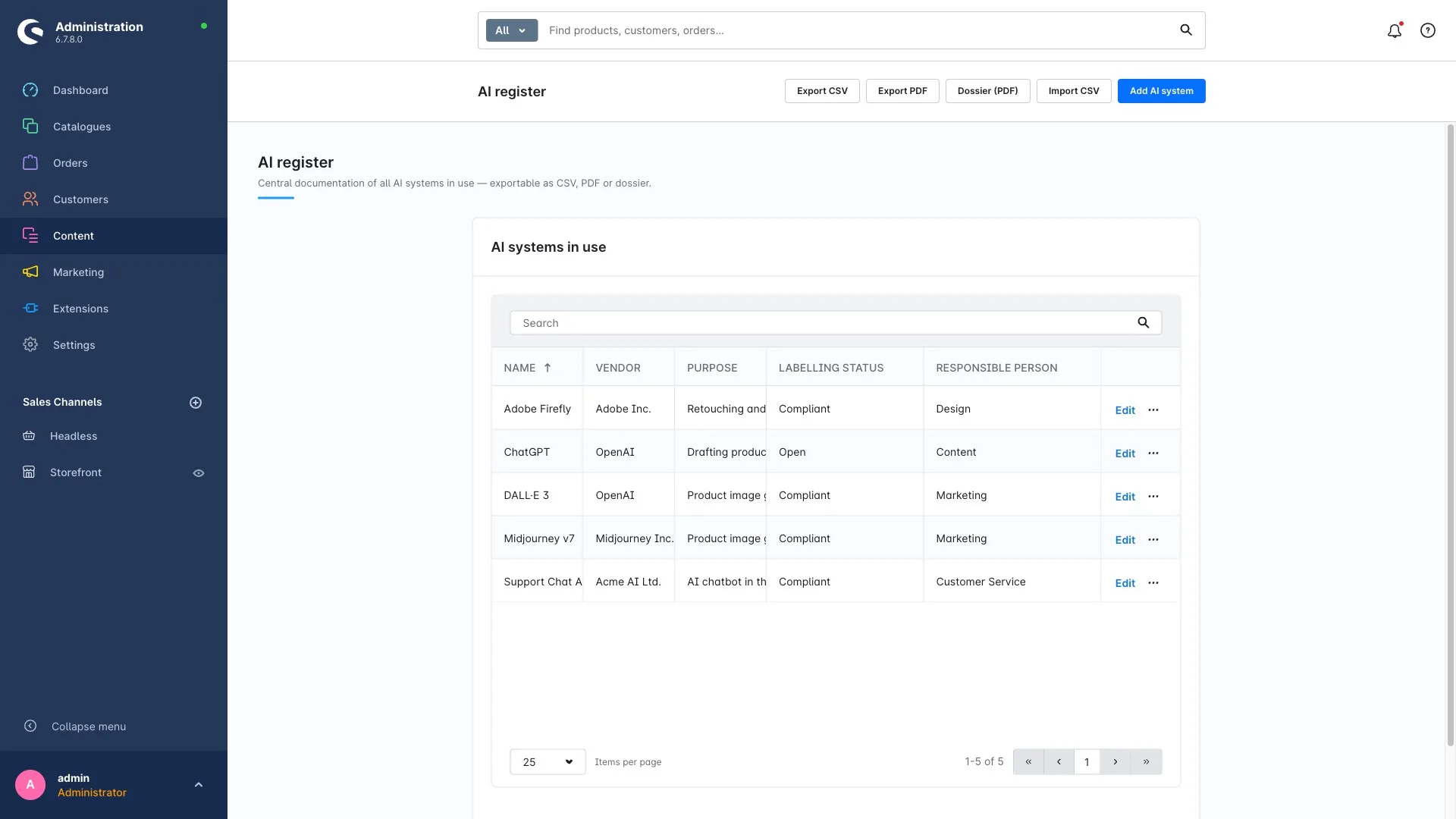
The AI register is your list of the AI systems you use in your shop – an image generator, a text tool, whatever is in play. It is the basis for your documentation and for any evidence you need later.
You open it under Content → EU AI Act Compliance → AI register.
Managing entries
The "AI systems in use" list shows your tools clearly. You can search, sort and page through it.
Step 1: Open the AI register.
Step 2: Create a new entry, or click an existing one to edit it.
Step 3: Fill in the details of the AI system.
Step 4: Save.
Importing entries (CSV)
Instead of creating entries one by one you can bring them in via CSV import. Click CSV import in the AI register and pick your file. (The same CSV import also brings in image labels – see Bulk labelling.)
Exporting
The register can be exported for your files or to hand on:
- CSV export – a spreadsheet of the register that you can work on further.
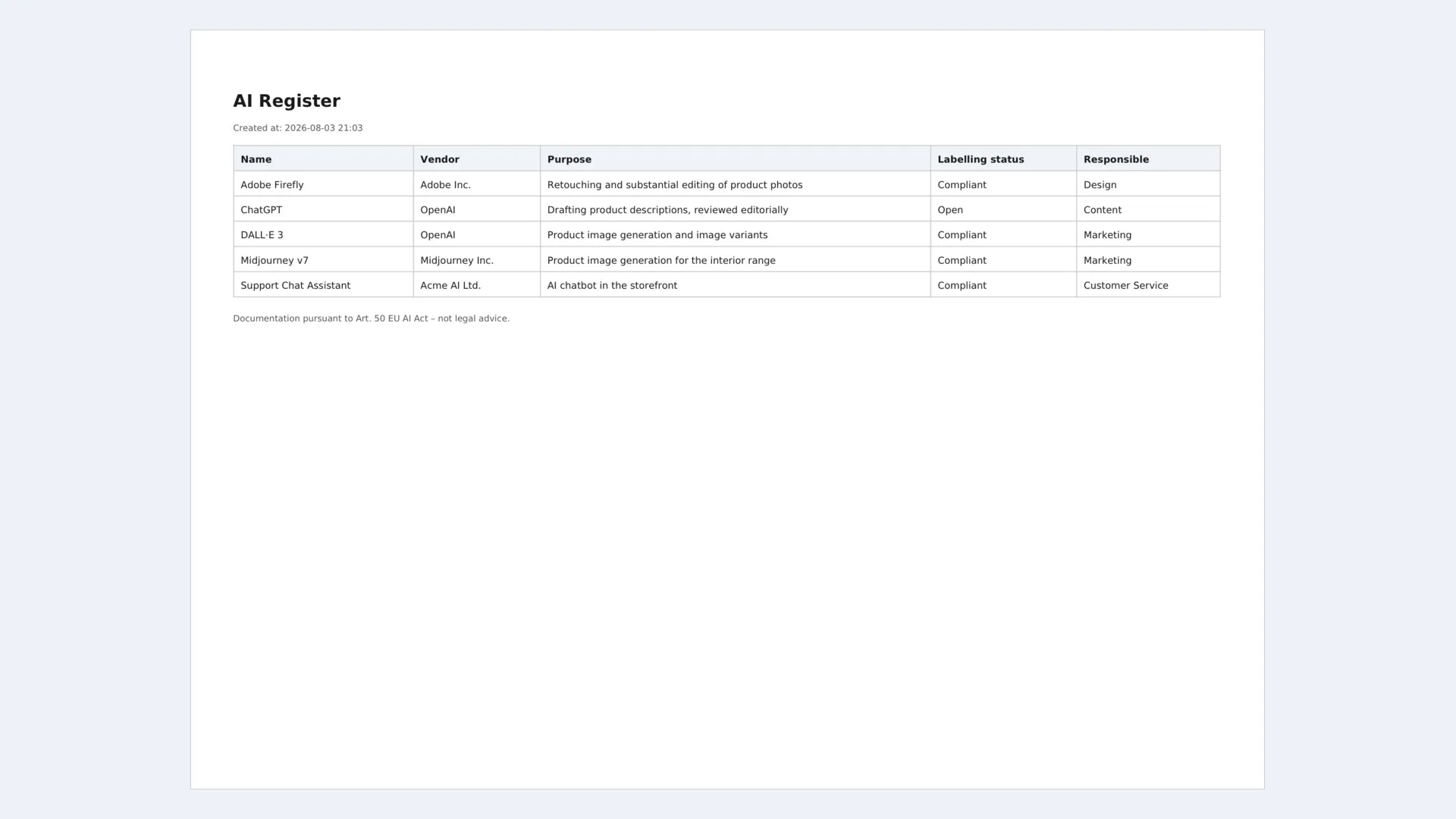
- PDF export – a cleanly formatted PDF document of the register, generated server-side. Ideal for filing or printing.
Step 1: Open the AI register.
Step 2: Click CSV export or PDF export.
Step 3: Save the generated file.
When you name the AI tool on an image (see Labelling images & video), it pays off to keep the same tools in the register. That way your documentation tells one coherent story.
The coverage dashboard
The dashboard shows at a glance how complete your labelling is. You'll find it under Content → EU AI Act Compliance, in the "coverage" section.
Among other things it tells you:
- how many media are labelled and how many are still unlabelled,
- the distribution across statuses,
- how many product texts already carry an origin.
That makes gaps obvious fast, so you can work through them on purpose instead of guessing.
Want to be told actively when too many media are unlabelled? Switch on the coverage warning in the configuration. You then get a notification in the administration as soon as your threshold is crossed.
The change log
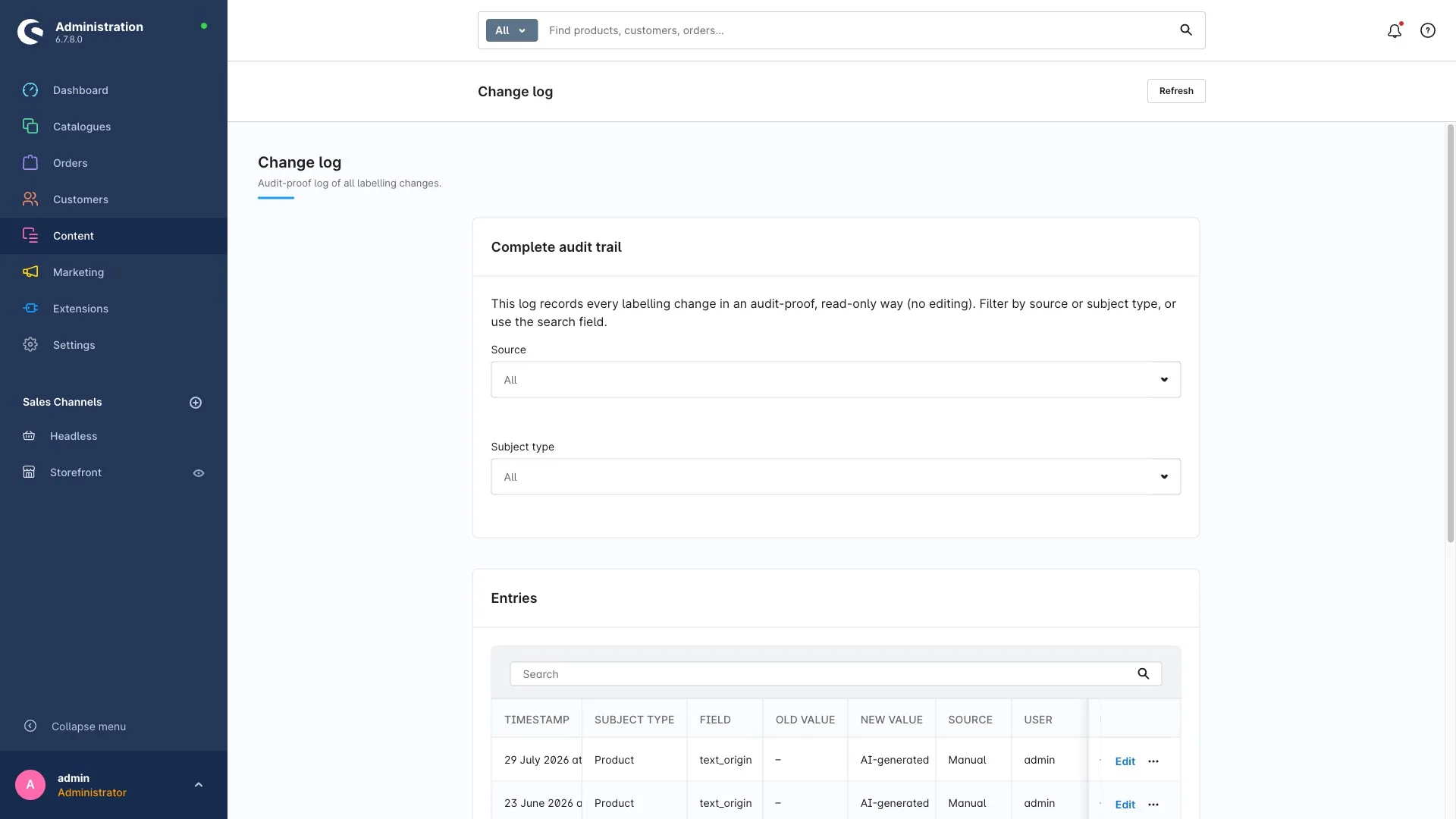
The change log records, without gaps, who set or changed a label when and where the change came from – manual, metadata scan, automatic apply, CSV import or bulk action.
You open it under Content → EU AI Act Compliance → Change log.
Undoing a change
If a label was set by mistake, you can undo it straight from the log:
Step 1: Open the change log.
Step 2: Find the entry in question.
Step 3: Choose Undo. The previous state is restored.
The log maintains itself: it is written automatically and older entries are cleaned up after about six months. You don't have to tidy anything.
The compliance dossier (PDF)
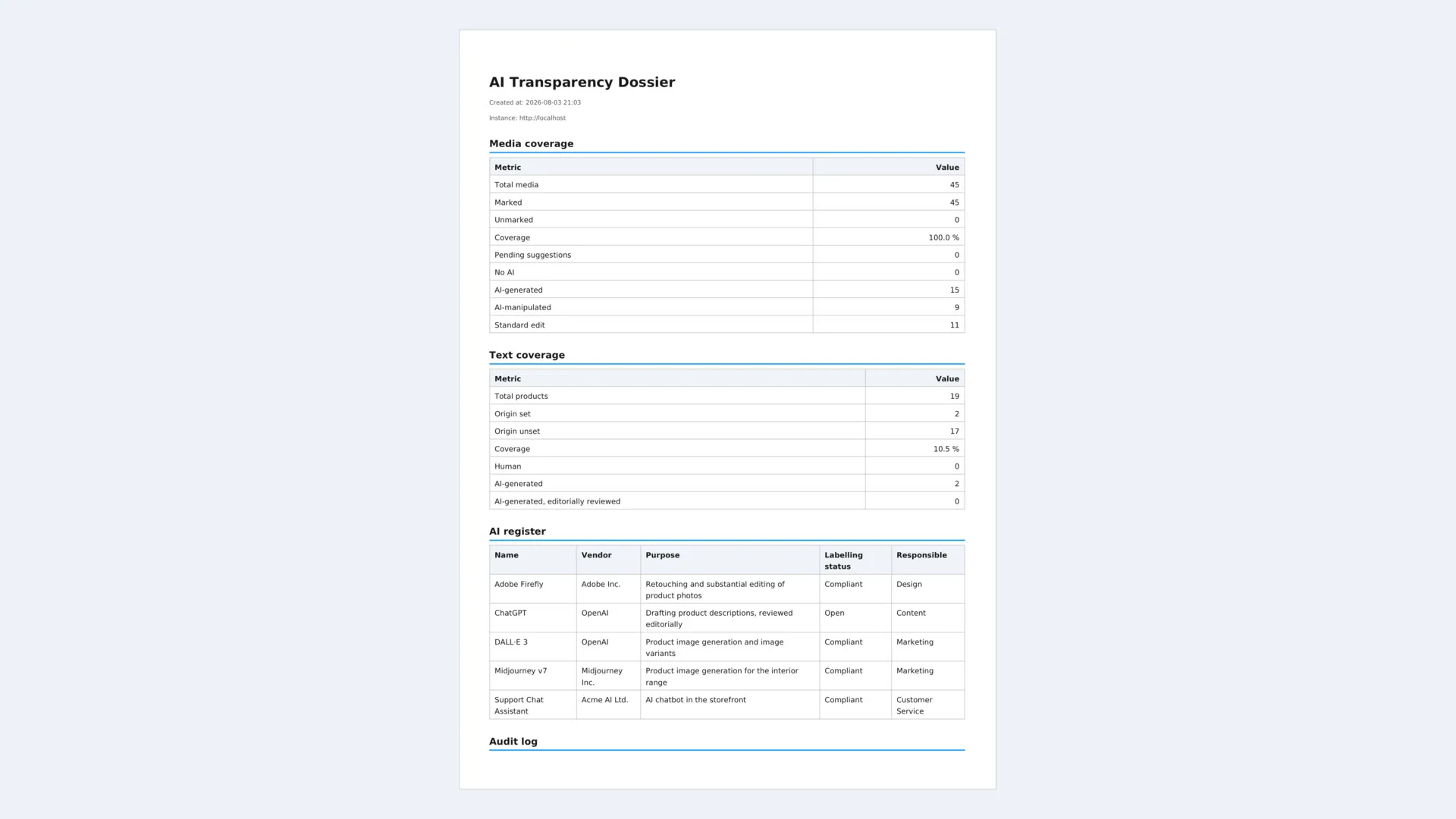
The compliance dossier pulls your current state into a single, traceable PDF document. It contains:
- your coverage (how complete your labelling is),
- the AI register (the AI systems in use),
- the change history,
- an attestation confirming the state at that moment.
How to generate it:
Step 1: Open the AI register (or the EU AI Act Compliance area).
Step 2: Click Export dossier (PDF).
Step 3: Save the PDF for your records.
Our recommendation
Generate the dossier at regular intervals – quarterly works well – and file it in order. Over time that documents how your labelling developed, which is far more convincing than a single snapshot.
The evidence the extension produces is a documentation aid. It does not replace legal advice – see FAQ & legal.