EU AI Act Compliance - What customers see
Badge, product-wide disclosure, text notice and chatbot disclosure in the storefront.
As soon as you label content, the extension informs your customers in the shop – automatically. This page shows which notices appear where.
1. The transparency badge on images and video
Every labelled image gets a small, clearly visible badge showing the AI status. It turns up everywhere that image is shown:
- in the product listing,
- in the product gallery on the detail page,
- in Shopping Experiences (CMS images and sliders),
- on video elements, including embedded YouTube and Vimeo videos.
The badge is visible as long as an AI status is set – so customers recognise the AI content the first time they see it, which is exactly what Article 50 asks for.
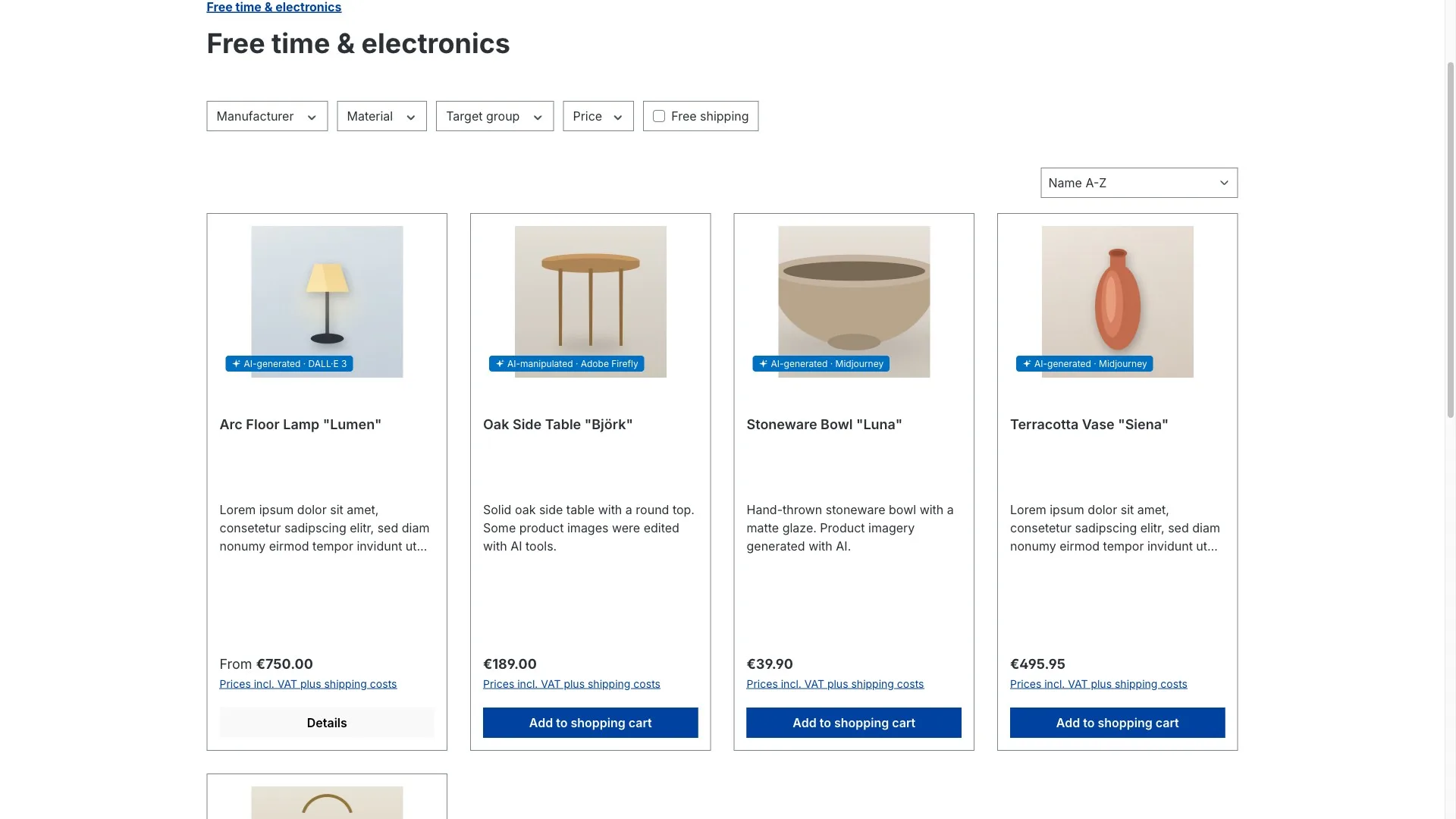
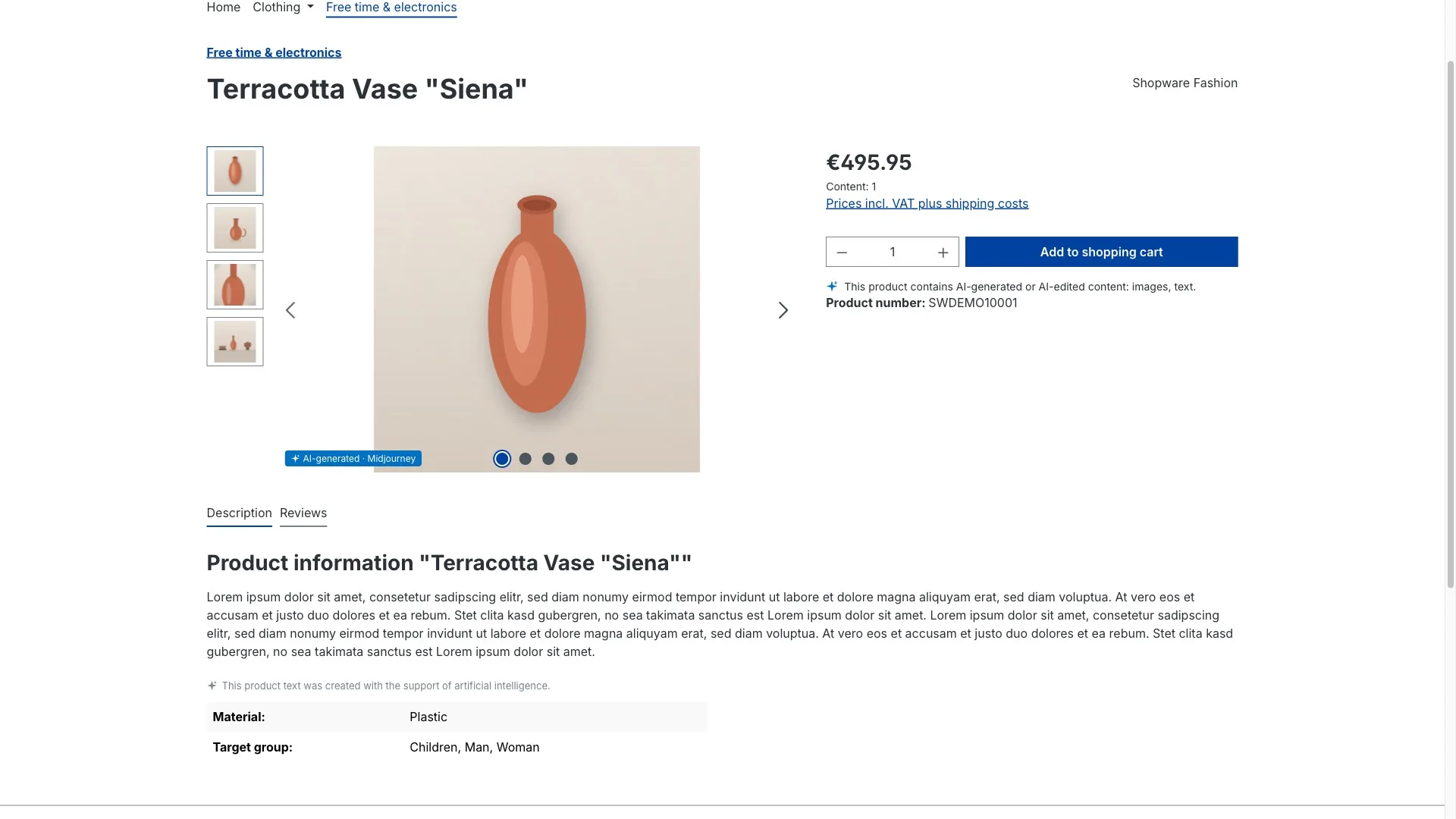
It follows the image into the zoom view as well – which matters, because that is often where a customer looks closely:
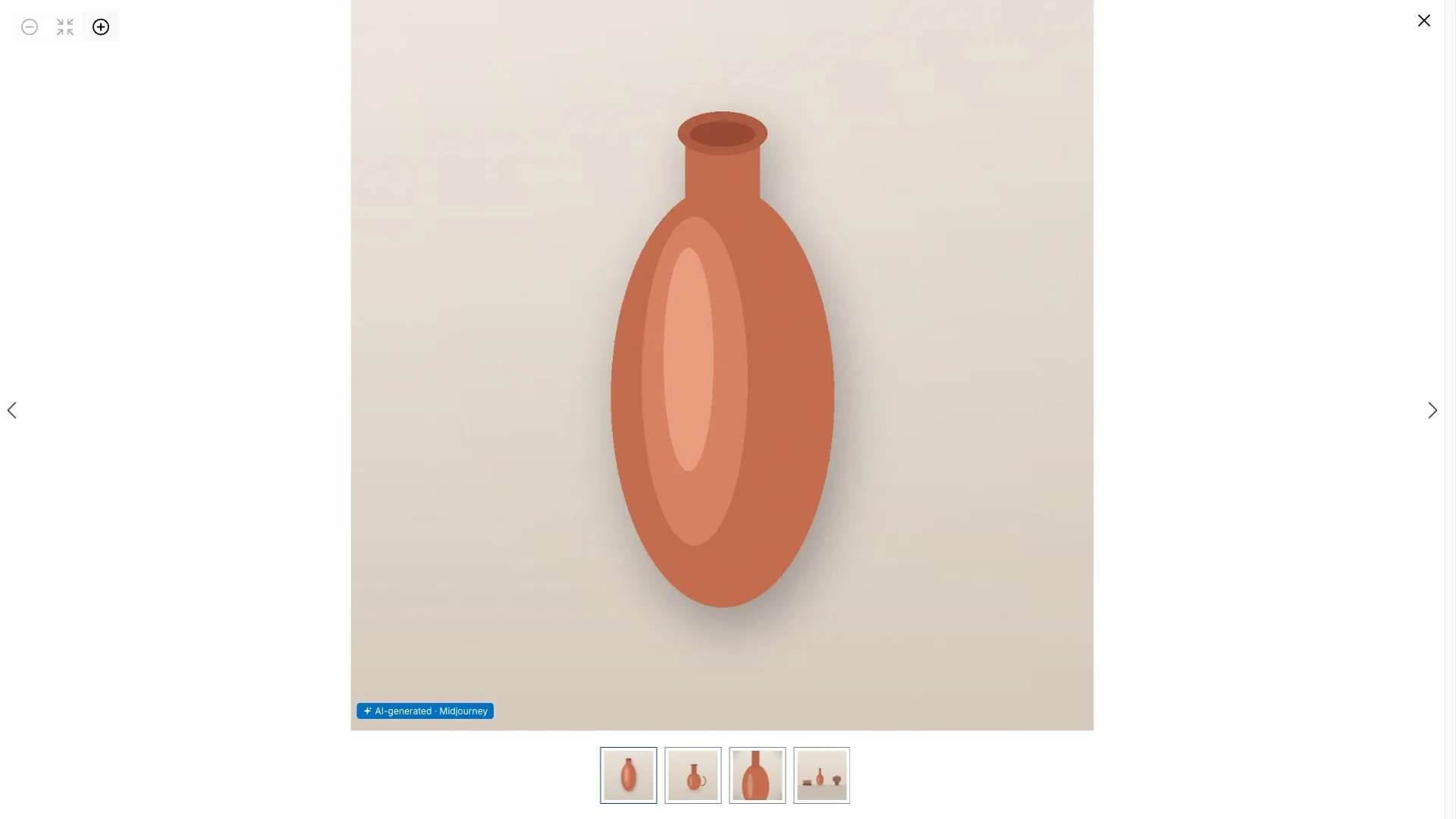
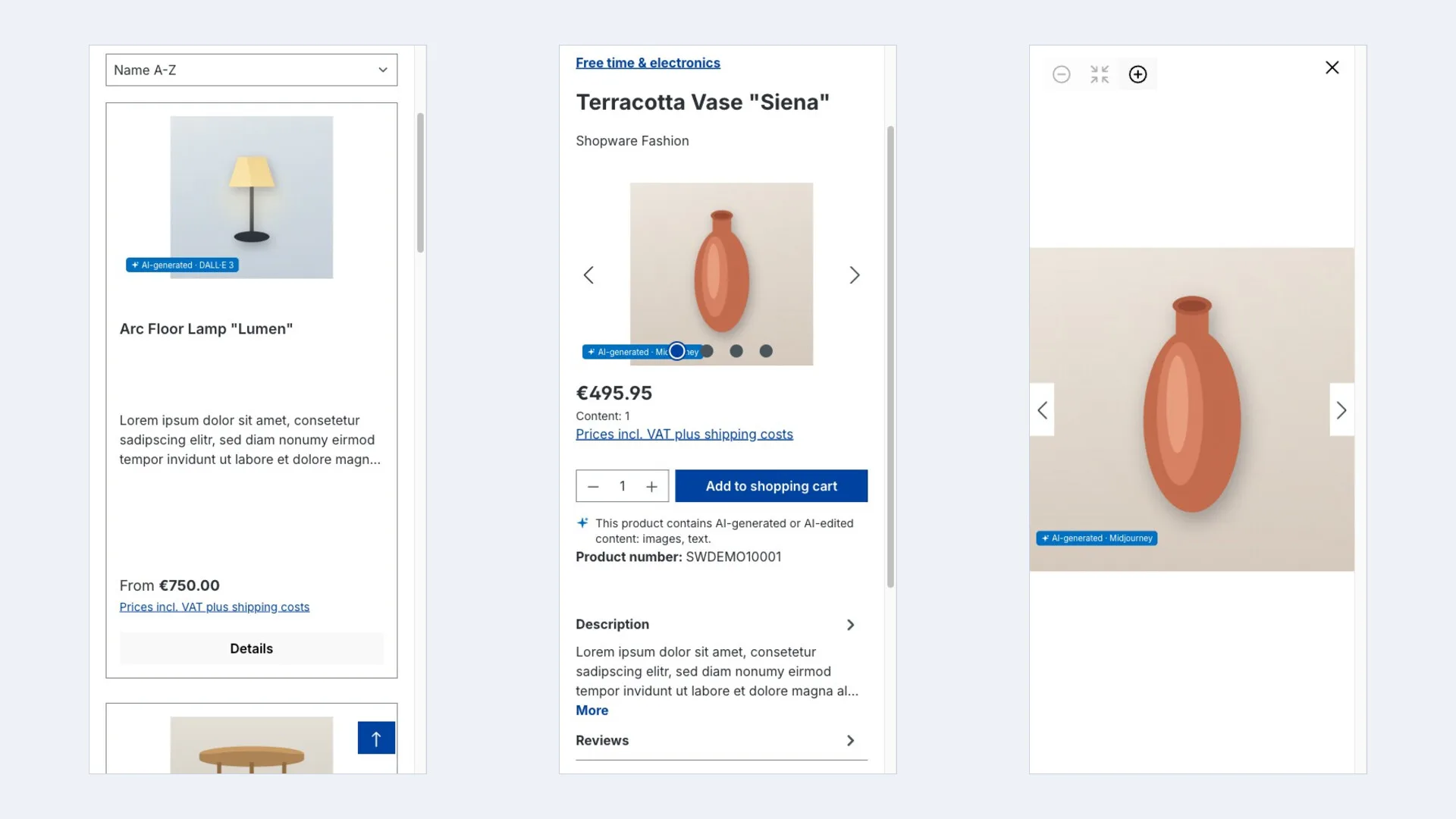
You decide entirely how it looks: position, style (icon, text or both), colours, size, text, tooltip, and whether the AI tool is named. Every one of those settings lives in Configuration.
2. The product-wide disclosure
On top of the badge there is a product-wide disclosure. In one place on the product detail page it summarises which content types of this product are AI-labelled – images, video, audio or text.
That gives customers a clear overall picture without having to inspect every single image. The disclosure is on by default and can be switched off in the configuration.
Audio has no badge in the storefront – audio content is covered through the product-wide disclosure.
3. The notice on AI product texts
If a product description is marked as AI-generated and the text notice is switched on, a short line appears on the product page. More in Labelling product texts.
4. The chatbot disclosure
If you run a chatbot that answers with artificial intelligence, customers have to know. The extension shows a notice at the chat window before the first interaction, for example "You are chatting with an AI assistant".
Here's how to switch it on:
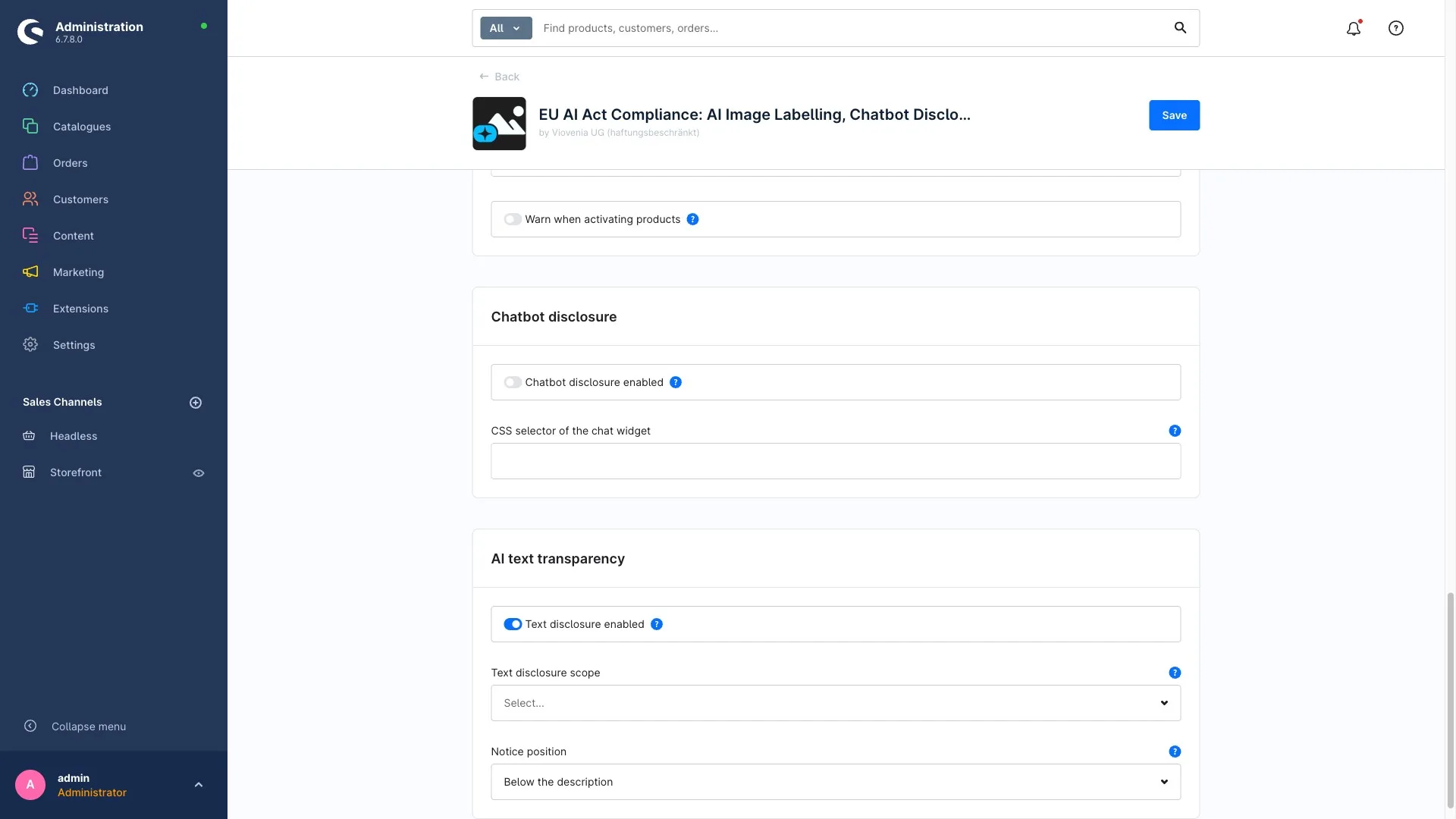
Step 1: Open the configuration and go to the chatbot disclosure section.
Step 2: Switch the chatbot disclosure on.
Step 3: Say which chat window the notice belongs to. You do that by selecting
the chat widget through a CSS selector, for example #chat-widget. Asynchronously
loading widgets work too. If you're unsure what to put here, ask whoever set up
your chatbot.
Step 4: Adjust the notice text if you like and save.
5. Machine-readable annotation (optional)
The extension can additionally output a machine-readable annotation (schema.org microdata) for labelled images. It is invisible to people but helps search engines and crawlers recognise AI content. This is optional and off by default – switch it on in the configuration if you want it.
Good to know
- Every notice appears automatically the moment you label content. You don't have to touch a template.
- Appearance and visibility can be set separately per sales channel (see Configuration).
- Everything runs locally in your shop: no external services, no cookies. The default badge colours meet WCAG AA contrast, the badge is click-through and carries a screen-reader label.