EU AI Act Compliance - Labelling images & video
Maintain the AI status on media and product images – individually, right where you work.
This page shows you how to mark a single image – or a video or audio file – as AI content, and what each status actually means.
The four statuses
For every media item you pick one of four statuses. That choice decides whether a transparency badge shows up in your shop.
| Status | When to pick it | Badge in the shop? |
|---|---|---|
| Not AI | A normal photo or graphic, neither AI-generated nor AI-modified. | No |
| Standard editing only | Ordinary image editing such as cropping, colour correction or retouching – no AI generation. | No by default |
| AI-generated | The image was created entirely or largely by an AI. | Yes |
| AI-manipulated (substantial) | A real image was substantially altered by AI (deepfake-like, for instance). | Yes |
Which statuses actually trigger a badge is up to you – see Configuration. Out of the box, "AI-generated" and "AI-manipulated (substantial)" trigger one.
Label a single image
Step 1: Open the image – either in the media library (Content → Media) or directly in a product, under the product images.
Step 2: In the sidebar, find the AI transparency section.
Step 3: Pick the matching AI status from the list.
Step 4 (optional): Enter the AI tool you used, for example "Midjourney" or "DALL·E". It helps your documentation and – if you want – it can be shown in the shop too.
Step 5: Save the media item.
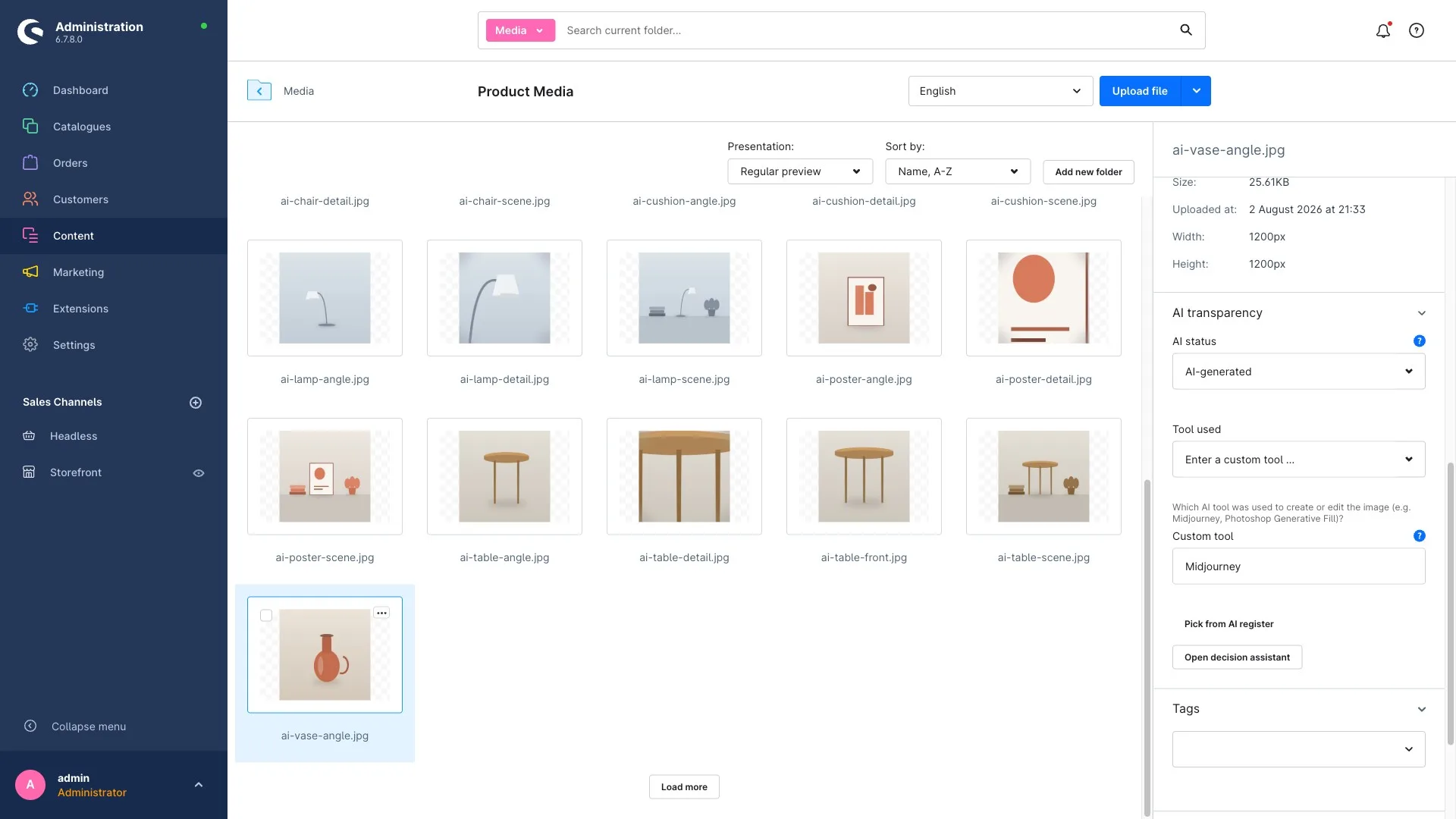
The badge then appears automatically everywhere that image is shown in the shop – in the listing, in the product gallery and in Shopping Experiences (CMS).
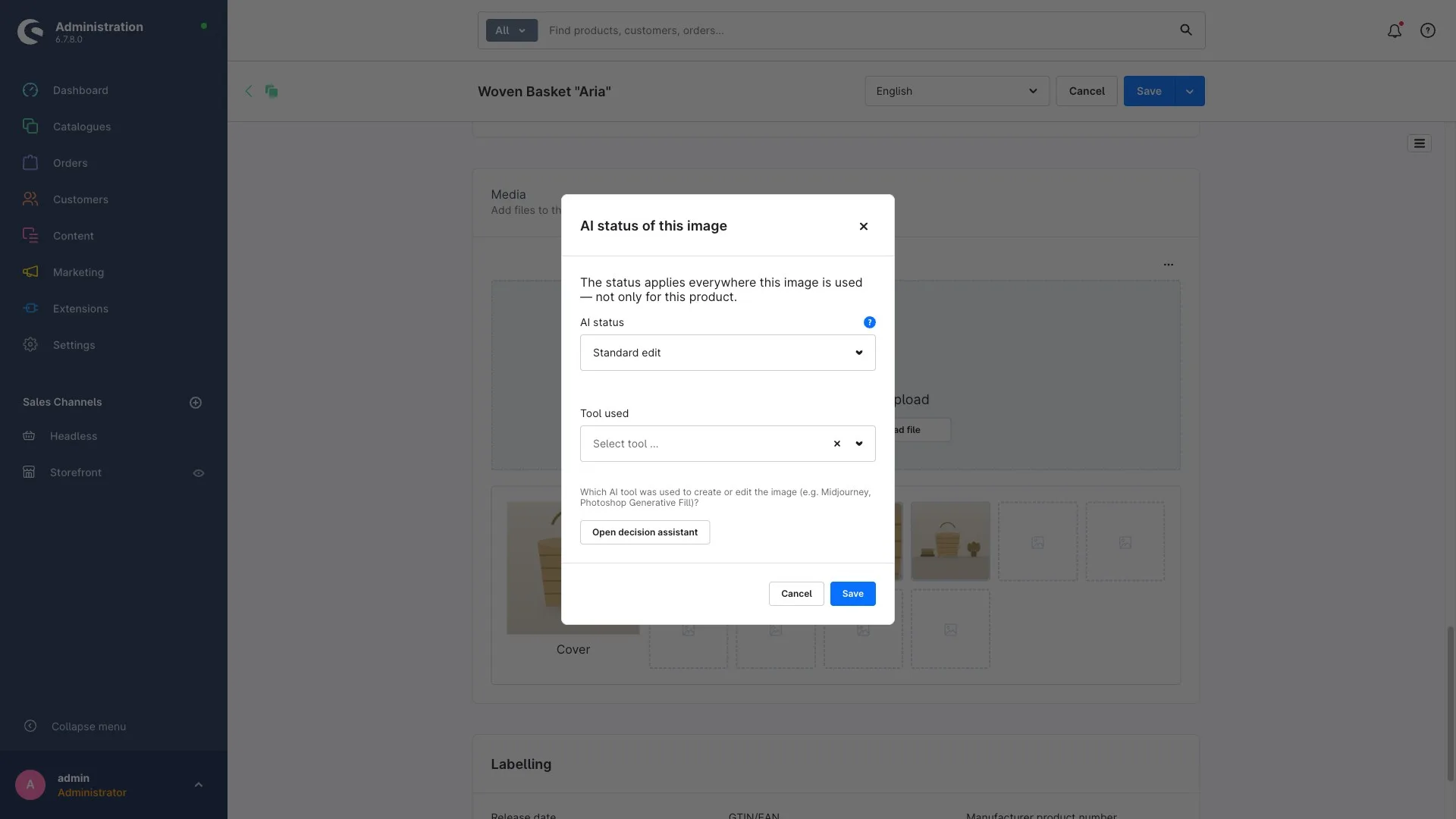
You can do exactly the same straight from a product, without a detour through the media library:
Works for video and audio too
You can label more than images:
- audio files (AI-generated voice-overs, for example),
- self-hosted video in your media library,
- embedded video from YouTube or Vimeo – the badge then sits on the video element in the shop.
The procedure is identical: set the status, optionally name the tool, save.
What happens when you upload new images
On upload, the extension can read technical image metadata (C2PA/IPTC) and suggest a status from it. Depending on your settings that suggestion is applied automatically or lands in the review queue for you to look at. More on that in Bulk labelling.
The metadata suggestion is a helper, not a verdict. It does not replace your own judgement – check suggestions and correct them where needed. Your image files are never modified; only metadata is read.
Tips
- Label right when you create new products. Then nothing piles up.
- The coverage dashboard keeps you on top of media that still have no status.
- With a lot of images at once, bulk labelling saves a huge amount of time.