EU AI Act Compliance - Configuration
Every setting per sales channel – from badge appearance to the metadata scan.
Here is every setting, explained in plain language. You open the configuration via Extensions → My extensions → EU AI Act Compliance → Configuration.
Settings apply per sales channel
At the very top of the configuration page you pick the sales channel. Everything below applies to exactly that channel. So your German shop can show a different badge than your international one.
Set your general defaults first, then adjust individual sales channels where they need to differ.
General
| Setting | What it does | Default |
|---|---|---|
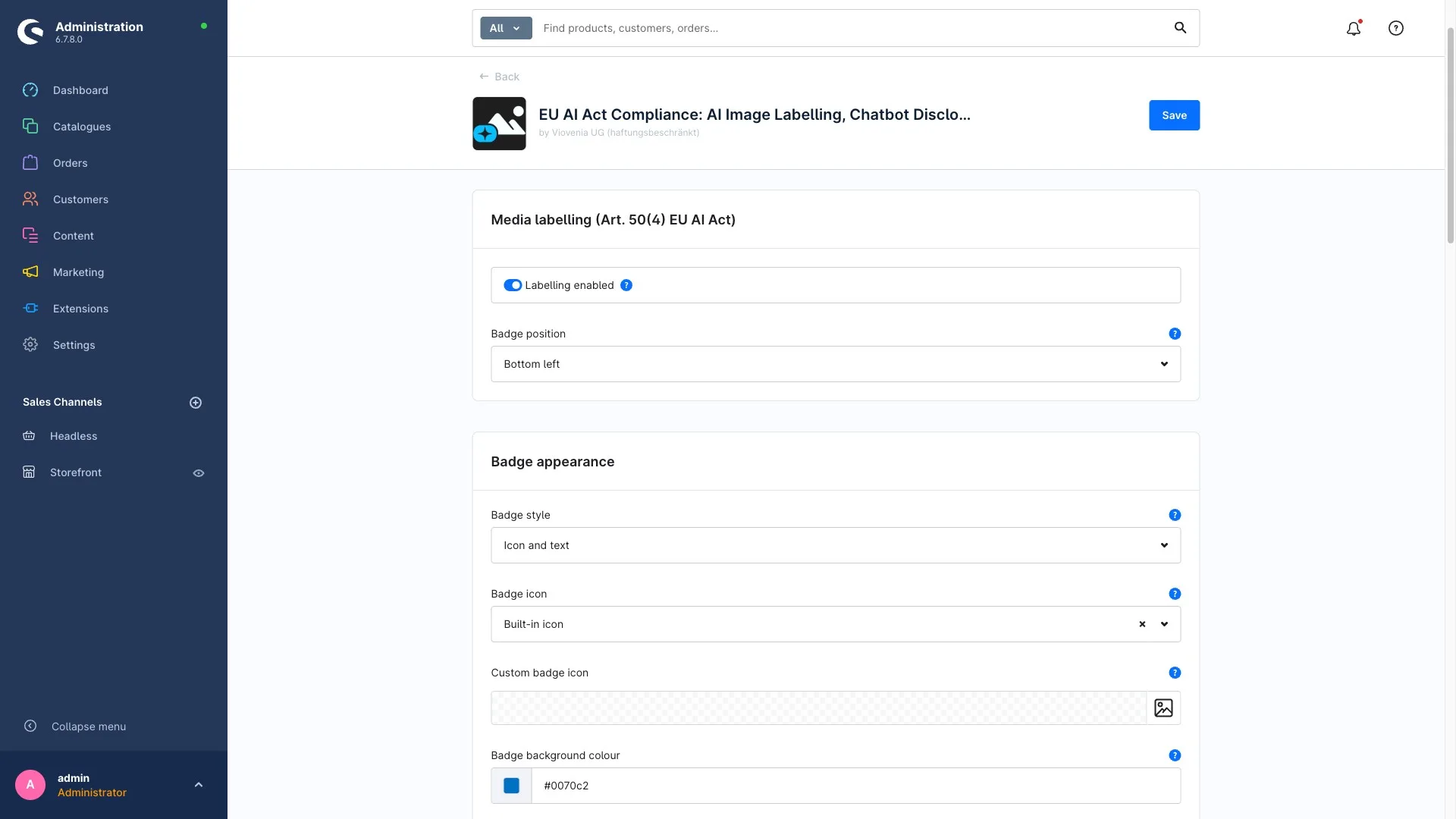
| Enable badge | Switches the transparency badge in the shop on or off. | on |
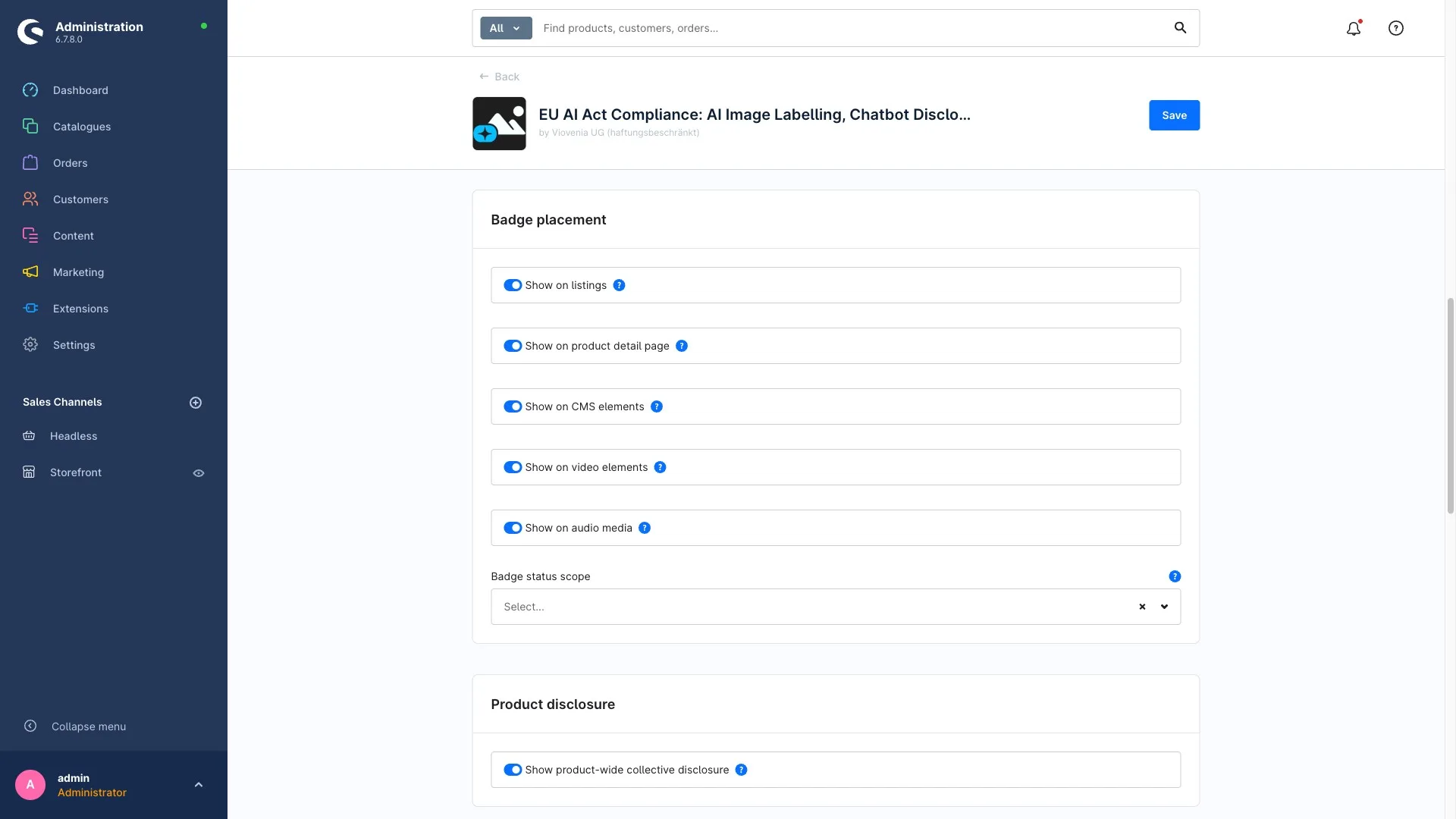
| Status scope | Which AI statuses trigger a badge. You can add "Standard editing only" here if you want it labelled too. | AI-generated + AI-manipulated (substantial) |
Badge appearance
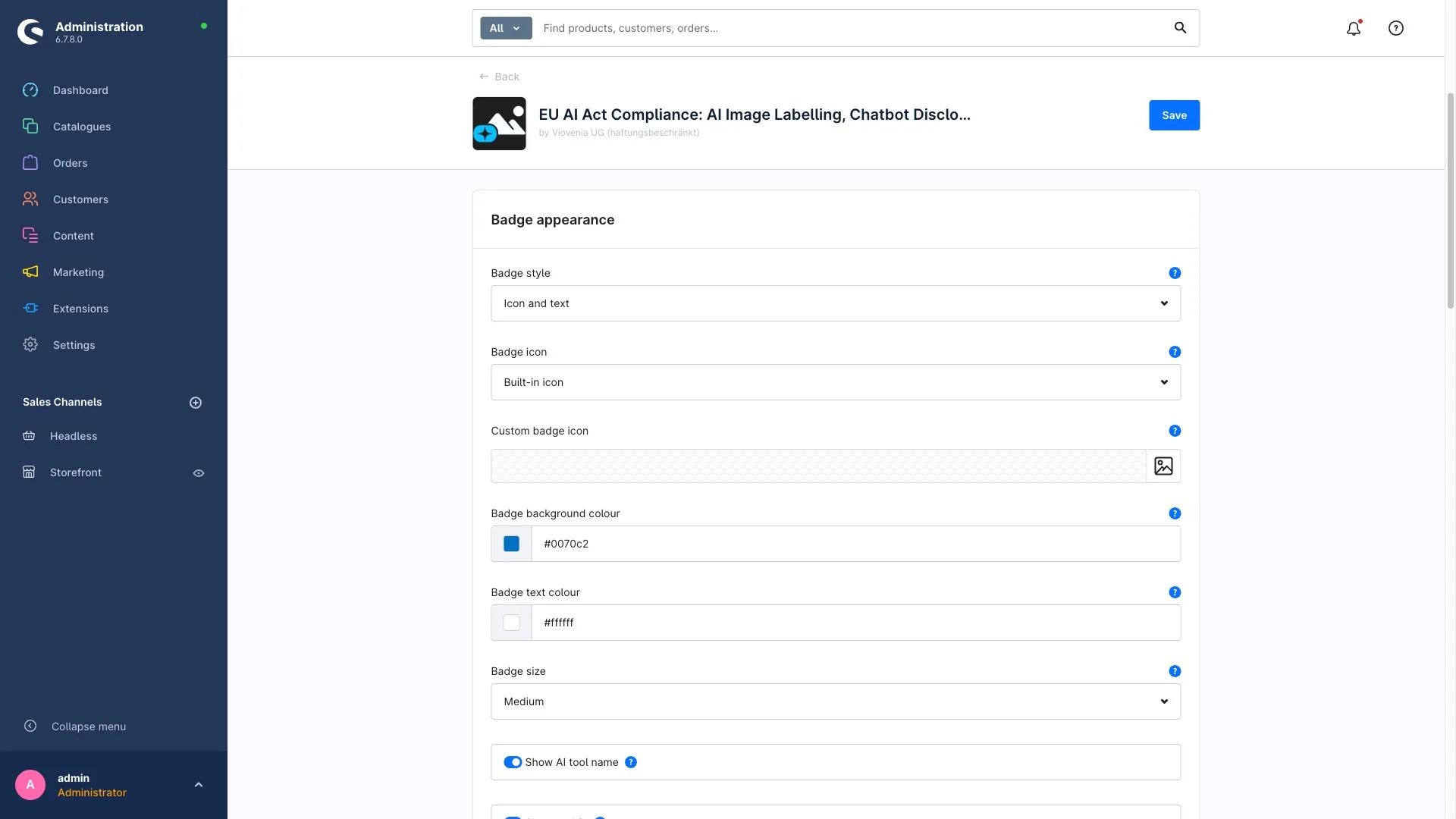
This is where you decide how the badge looks.
| Setting | What it does | Default |
|---|---|---|
| Style | Icon, text or both. | – |
| Badge icon | Use the built-in icon – or your own icon from the media library (image or SVG). Pick "custom icon" and a field to select it appears. | built-in |
| Badge text (general) | Your own default text for the badge. Leave it empty to use the built-in wording. | – |
| Texts per status | Optional dedicated texts for "AI-generated" and "AI-manipulated". Leave empty for the default. | – |
| Background and text colour | Match the badge to your shop design. The defaults meet WCAG AA contrast. | high-contrast default |
| Size | Small, medium or large. | medium |
| Tooltip | The hint shown when someone hovers the badge. Leave empty for the default. | – |
| Show AI tool name | Additionally shows the stored AI tool (where you maintained one) in the badge or its tooltip. | off |
Badge placement
| Setting | What it does | Default |
|---|---|---|
| Position | Where on the image the badge sits: top left, top right, bottom left or bottom right. | – |
| Visibility per placement | Switch the badge on or off separately for the product listing, the product detail page, Shopping Experiences (CMS elements), video elements and audio elements. | – |
Product-wide disclosure and text notice
| Setting | What it does | Default |
|---|---|---|
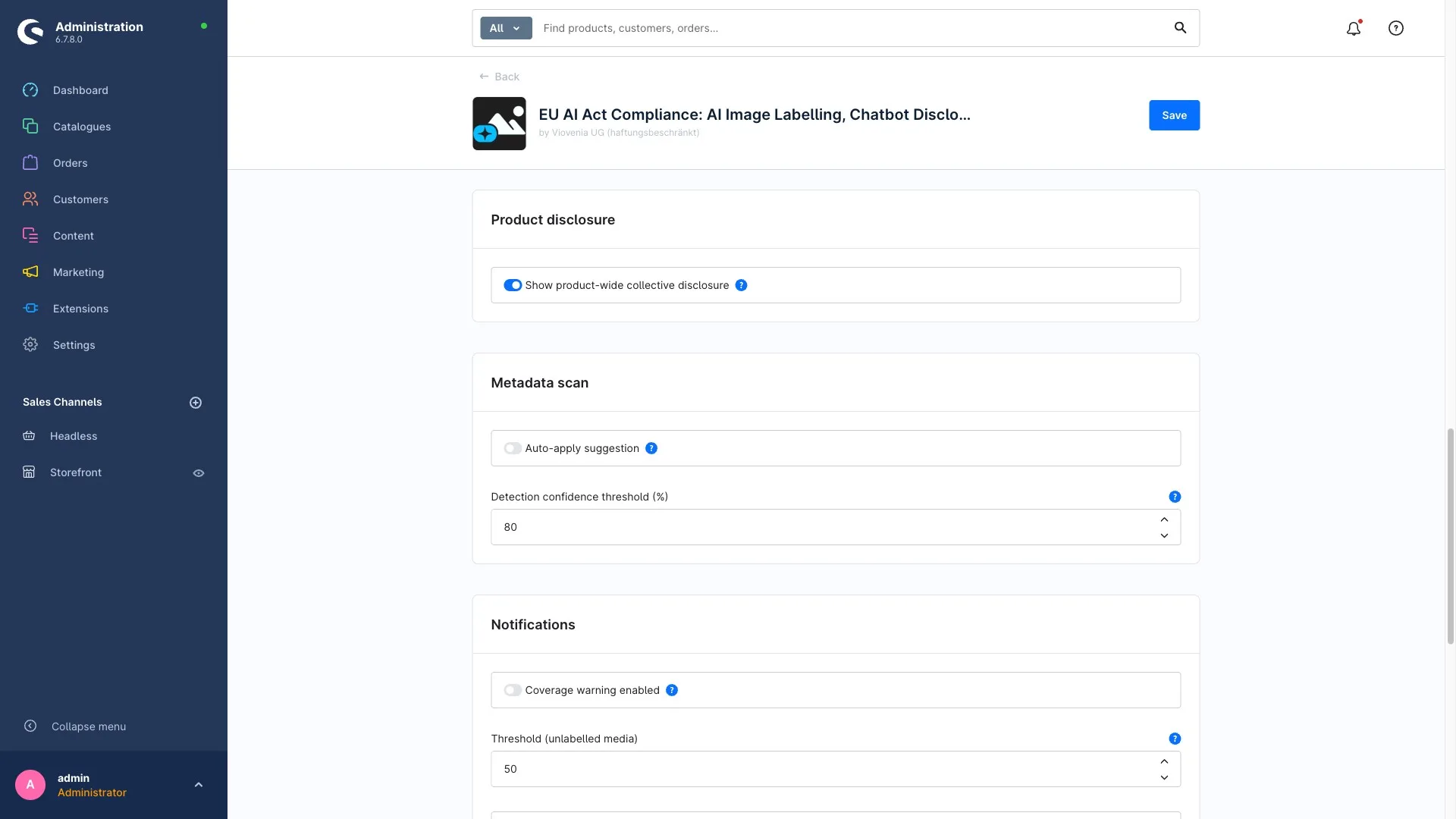
| Show product-wide disclosure | Shows a summary on the product page of which content types (images, video, audio, text) are AI-labelled. | on |
| Text notice enabled | Shows a notice on the product page when the description is marked as AI-generated. | off |
| Text notice scope | Which origins the notice covers: "AI-generated" and/or "AI-generated, editorially reviewed". | both |
| Position of the text notice | Where on the product page the notice appears. | – |
Metadata scan
Controls what happens with the automatic suggestions read from image metadata.
| Setting | What it does | Default |
|---|---|---|
| Apply suggestion automatically | Applies the status detected in the image data as soon as the confidence reaches the threshold. Otherwise the status is only suggested and lands in the review queue. | off |
| Confidence threshold (%) | From which confidence (0–100) the status is applied automatically. Only has an effect when automatic apply is on. | 80 |
More on this in Bulk labelling.
Notifications
| Setting | What it does | Default |
|---|---|---|
| Coverage warning enabled | A daily background check counts media with no AI label. Once the threshold is reached you get a notification in the administration. | off |
| Threshold (unlabelled media) | From how many unlabelled media the warning fires. Only has an effect when the coverage warning is on. | – |
| Warning when activating products | Optionally shows a notice in the administration when you activate a product that contains AI-capable images without a label. | off |
Chatbot disclosure
| Setting | What it does | Default |
|---|---|---|
| Chatbot disclosure enabled | Shows a notice at the chat window before the first interaction. | off |
| Chat widget (CSS selector) | Which chat window the notice attaches to, for example #chat-widget. Asynchronously loading widgets work too. If in doubt, ask whoever set up your chatbot. | – |
| Notice text | The wording shown, for example "You are chatting with an AI assistant". | built-in wording |
More on this in What customers see.
Machine-readable annotation
| Setting | What it does | Default |
|---|---|---|
| Output structured data | Additionally outputs machine-readable information (schema.org microdata) for labelled images. Invisible to people, but it helps search engines and crawlers recognise AI content. | off |
Don't forget to save
After every change, click Save in the top right. The settings take effect immediately for the selected sales channel.