EU AI Act Compliance - Getting started
Install, activate and label your first media items – the fastest route to a visible badge.
This page takes you from installing the extension to your first labelled image. It takes a few minutes, and everything happens inside the Shopware administration.
Install and activate
Step 1: In the administration, open Extensions → My extensions.
Step 2: Find EU AI Act Compliance in the list.
Step 3: Click Install, then Activate.
After activation a new area called EU AI Act Compliance shows up in the admin menu under Content. And under Extensions → My extensions the extension now has a Configuration button that holds every setting.
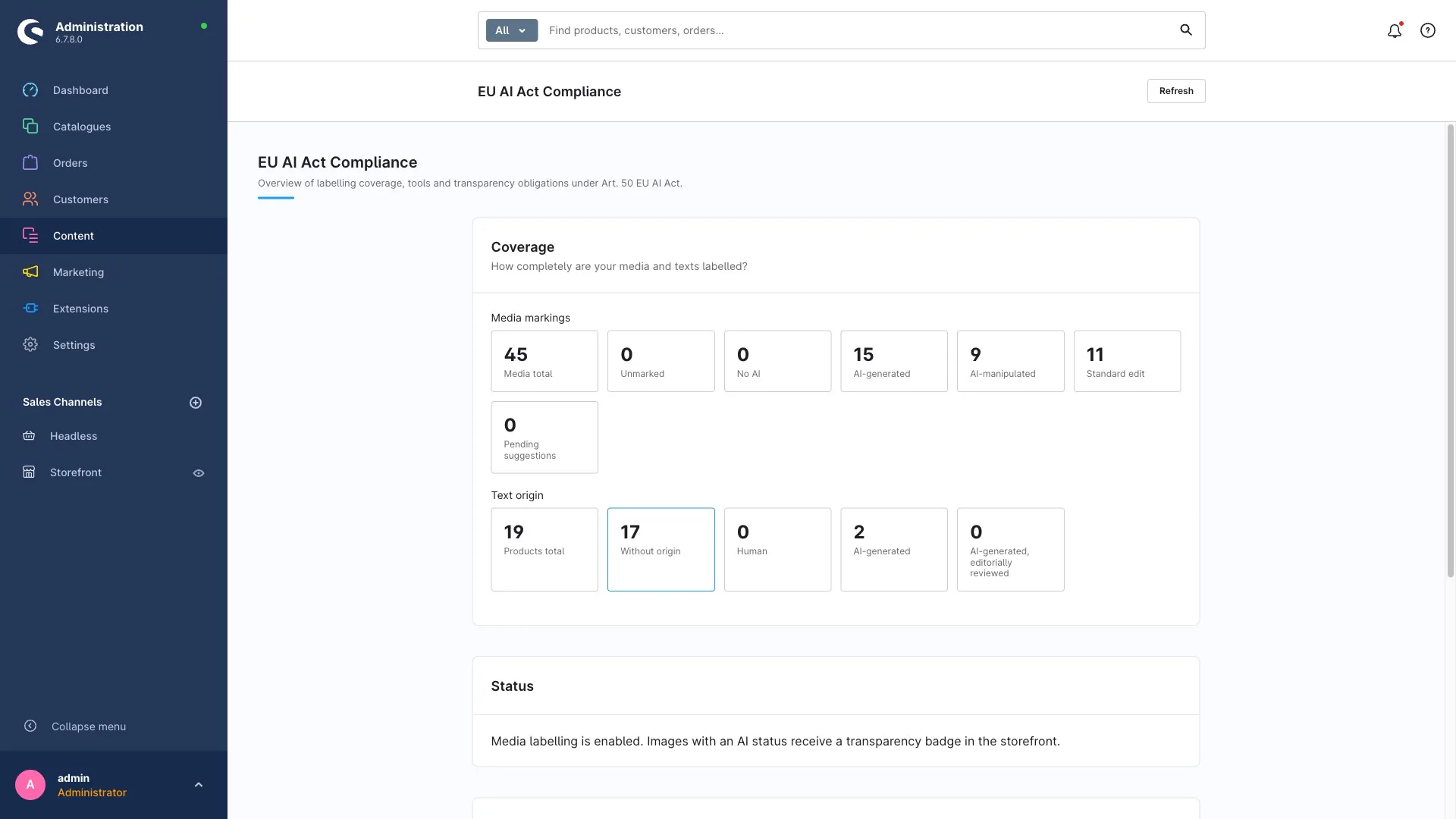
The quick-start assistant
When you open the EU AI Act Compliance area, a quick-start card greets you. In four steps it shows you how to label an image as AI-generated, and gives you a short overview of the statuses and the legal background. Perfect for your first run-through.
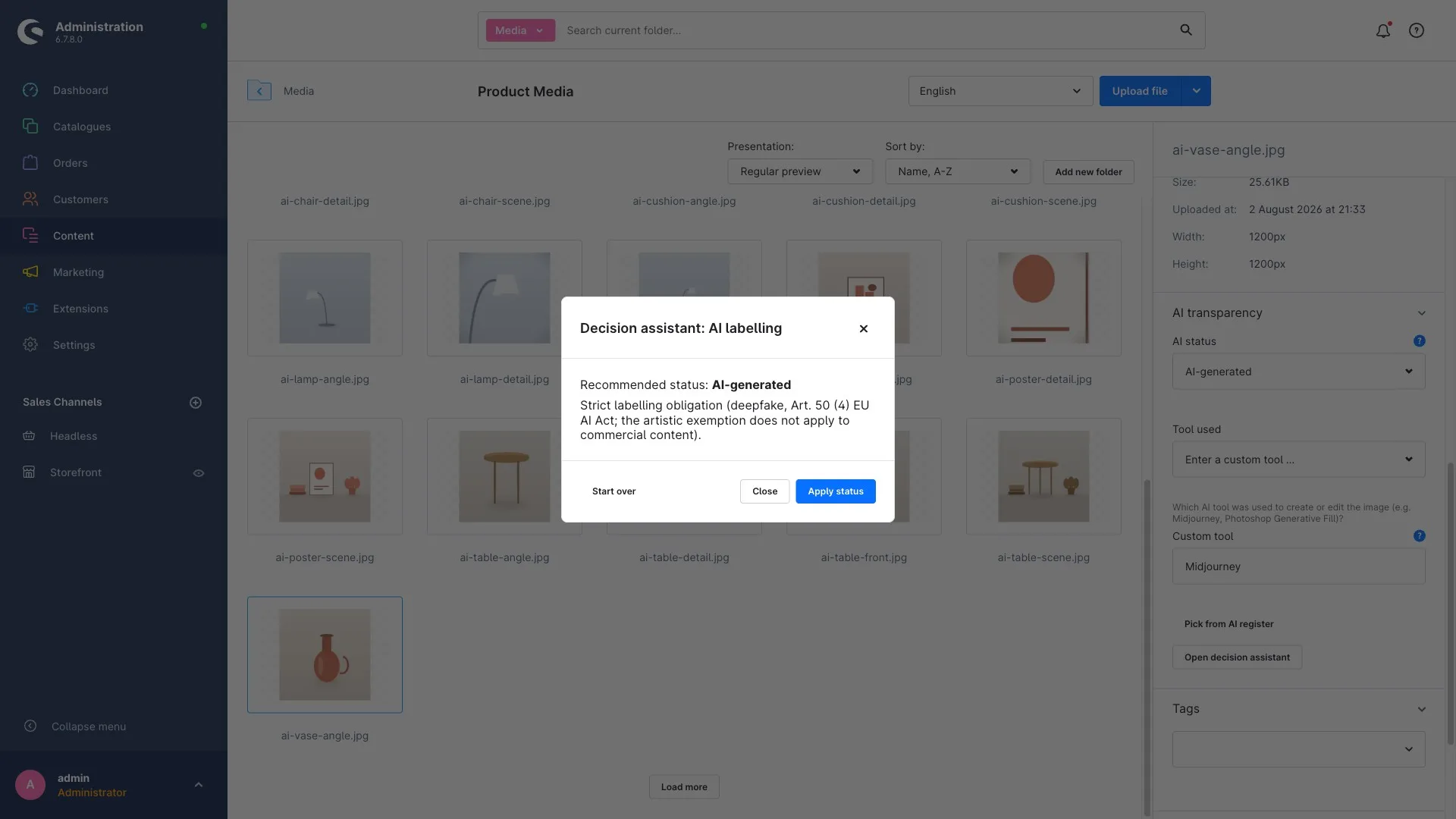
Label your first AI image
Step 1 – Open the media: Go to Content → Media, or open a product that uses the image.
Step 2 – Pick the image: Click the image that was created or edited with artificial intelligence.
Step 3 – Set the status: In the sidebar you'll find the AI transparency section. Choose the matching status (for example "AI-generated") and – if you know it – the AI tool used.
Step 4 – Save: Save the media item. Done.
The transparency badge now appears automatically in your shop wherever that image is shown. The full walkthrough is in Labelling images & video.
A sensible order for the first days
- Check the configuration: Set the badge up the way you like it (see Configuration). The badge is switched on by default.
- Label your existing AI content: Start with your most important images. If there are a lot of them, bulk labelling will save you hours.
- Check your chatbot: If you run one, switch on the chatbot notice (see What customers see).
- Watch your coverage: The coverage dashboard shows you how complete your labelling is.
Every setting can be made per sales channel. So your German shop can show a different badge than your international one.