EU AI Act Compliance - Labelling product texts
Flag AI-written product descriptions and disclose them transparently in the storefront.
It isn't only images that come out of an AI these days – product texts do too. The extension lets you state where a product description came from.
The three text origins
For every product you can record how the description came about:
| Origin | What it means |
|---|---|
| Human | A person wrote the text. |
| AI-generated | An AI produced the text. |
| AI-generated, editorially reviewed | An AI produced the text and a person then checked and approved it. |
How to set the origin
Step 1: Open the product in the administration.
Step 2: Find the AI transparency section on the product – the field for the text origin.
Step 3: Pick the matching origin (human, AI-generated, or AI-generated and editorially reviewed).
Step 4: Save the product.
What customers see
If the text notice is switched on, a discreet line appears on the product page saying the description was created with the help of AI. Whether the notice shows at all, and for which origins, is up to you – see Configuration.
Out of the box the notice covers AI-generated and AI-generated, editorially reviewed. Purely human texts never get a notice.
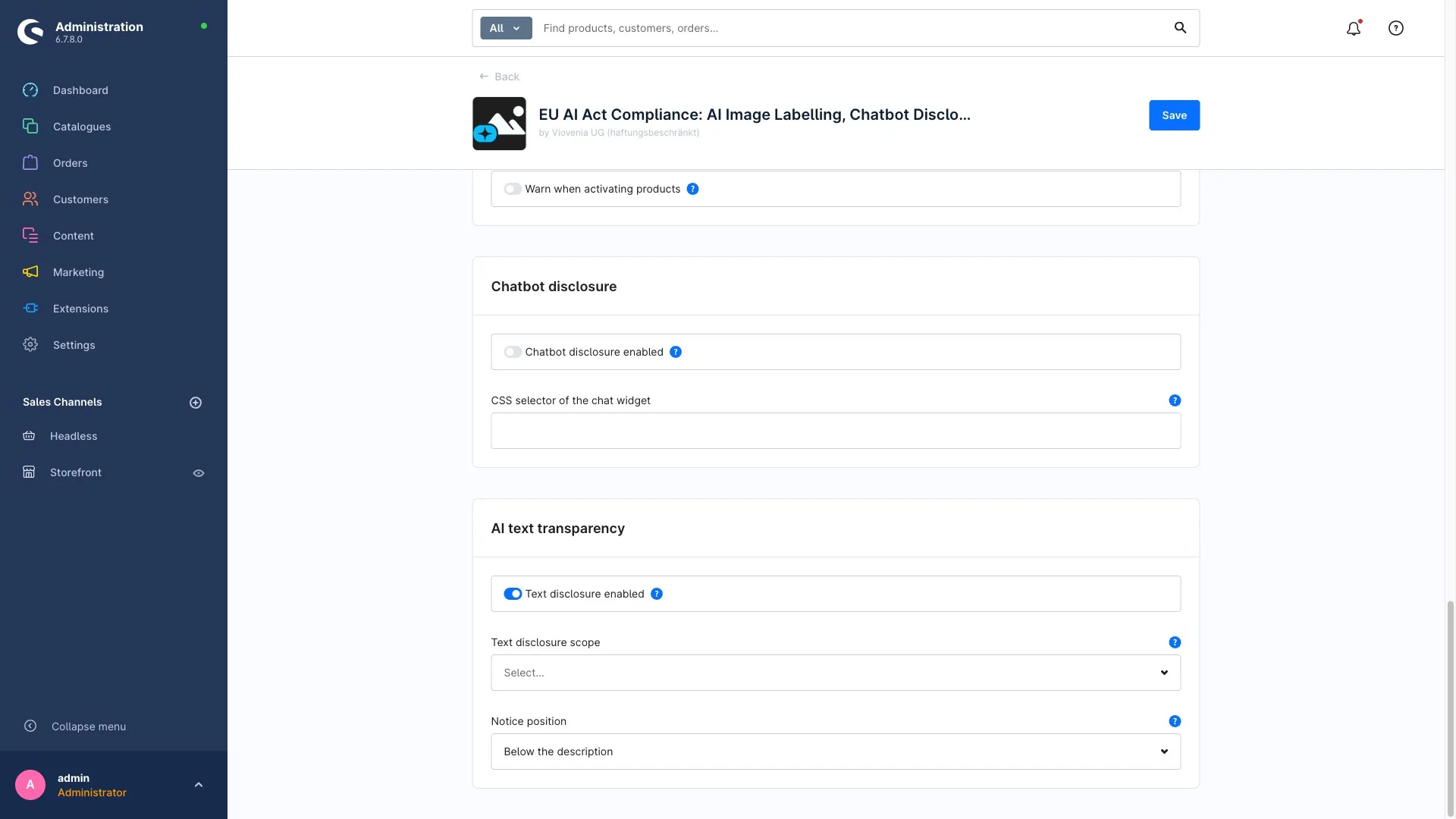
The text notice is off by default. Turn it on in the configuration if you want to use it – and choose where on the product page it appears.
A tip from practice
Pick AI-generated, editorially reviewed whenever a person has proofread and approved the AI text. It signals to your customers that a human looked at it – and it is the honest label for how most shops actually work.
The coverage dashboard keeps track of which texts already carry an origin and which don't.