Right to Repair & EmpCo: Claims and Repairability - Import & export
Import and export claims and repairability data as CSV – with templates, a dry run and an error report.
Four jobs live here, all of them CSV:
- Export claims – download every claim you've logged, for your records.
- Import claims – bring claims over from another system.
- Import repairability data – maintain the product page info for many products at once instead of one by one.
- Export repairability data – download what you've maintained, edit it and import it back.
CSV basics
All CSV files of this extension follow the same rules:
| Property | Requirement |
|---|---|
| Character set | UTF-8 (with BOM) |
| Separator | Semicolon (;) |
| First row | Header row with the column names |
| Date and time | YYYY-MM-DD HH:MM:SS, e.g. 2026-05-02 10:15:00 |
| Date only | YYYY-MM-DD, e.g. 2027-12-31 |
| Yes/no fields | 0 (no) or 1 (yes); on import true / yes are accepted too |
The single most useful tip: before every import, download the matching template with the "Download template" button. It has the header row in the right order, which rules out the most common source of errors.
Spreadsheet programs like Excel or LibreOffice Calc open and save CSV files. When saving, make sure you pick the "CSV (UTF-8)" format with semicolon as the separator.
Export claims
Step 1: Open Orders → Claims in the admin.
Step 2: Click Claims in the top right.
Step 3: Click Export CSV.
Step 4: Your browser downloads the file. The filename contains today's date,
for example viove-repair-compliance-claims-2026-06-22.csv.
The file contains all claims, not just the ones currently filtered – good as a record or for analysis in a spreadsheet.
The columns of the export
The export file has these columns, in this order. It doubles as the basis for the claims import, so you can export, edit and import back (a round trip):
orderNumber;lineItemLabel;status;remedyChoice;eligible;reportedAt;infoProvidedAt;remedyChosenAt;repairCompletedAt;warrantyUntil;warrantyExtendedUntil;extensionApplied;comment;customerComment;affectedQuantity
Import claims
Use this to bring claims over from another system – your previous service software, for example. The import sits on the overview page of the module in the card Import claims (CSV).
The claims import needs at least the Create permission. See User permissions.
Step 1 – Download the template. In the card Import claims (CSV), click Download template. You get a CSV with the correct header row.
Step 2 – Fill it in. One row per claim. Only the order number is mandatory; everything else is optional.
Step 3 – Pick your file. Select your filled-in file under CSV file.
Step 4 – Do a dry run (recommended). Tick Dry run (save nothing) first and click Import. The file is only checked, nothing is stored.
Step 5 – Read the error report. Below you get a result message and, if needed, a Rows with errors table with Row, Error type and Message. Fix those rows in your CSV (see the error table below).
Step 6 – Run the real import. Once the dry run is clean, untick Dry run and click Import again. Now the claims are actually created or updated.
After the import you get a message like "Import finished: 5 created, 2 updated, 1 skipped." In a dry run it reads "Dry run finished: 5 would be created, 2 updated, 1 skipped. Nothing was saved."
How the right order and line item are found
Every row has to be matched to a line item:
- The order is found by its order number (column
orderNumber). - The line item within that order is looked up in this order:
- Product number (
productNumber) – checked first and the most reliable. - Line item label (
lineItemLabel) – if no product number is given. - Position index (
positionIndex, counted from 1) – when an order has several matching line items and only this tells them apart.
- Product number (
If several line items match and there's no unambiguous position index, the row is reported as ambiguous.
What happens if you import twice?
The import is built so you can repeat it safely. If a claim already exists for a line item, it is updated rather than created a second time. So re-importing the same file never produces duplicates. You'll see it in the number behind updated.
The columns of the claims import file
The import file has the same columns as the export plus two extra ones at the end for resolving the line item:
| Column | Required? | Format | Meaning |
|---|---|---|---|
orderNumber | required | text | Order number, finds the order. E.g. 10001 |
lineItemLabel | optional | text | Line item label; finds the line item when no productNumber is given |
status | optional | choice | reported, info_provided, remedy_chosen or completed. Empty = reported |
remedyChoice | optional | choice | repair or replacement. Empty = not chosen yet |
eligible | optional | 0/1 | Whether the obligations apply |
reportedAt | optional | – | Ignored on import. The system sets the report date to the time of creation |
infoProvidedAt | optional | date + time | When the notice was given. Empty = unchanged |
remedyChosenAt | optional | date + time | When the remedy was chosen |
repairCompletedAt | optional | date + time | When the repair was completed |
warrantyUntil | optional | date | End of the statutory warranty. E.g. 2027-12-31 |
warrantyExtendedUntil | optional | date | End of the extended warranty |
extensionApplied | optional | 0/1 | Whether the +12-month extension was already applied |
comment | optional | text | Internal note – admin only, never shown to the customer |
customerComment | optional | text | The customer description entered when reporting – strictly separate from comment |
affectedQuantity | optional | number | Affected quantity. Empty, 0 or a value above the ordered quantity is capped automatically – the import doesn't abort |
productNumber | optional | text | Product number for finding the line item (highest priority). E.g. SW10001 |
positionIndex | optional | number (from 1) | Position within the order; resolves ambiguous matches |
You don't have to fill in every column. For a simple import, the order number plus something identifying the line item (ideally the product number) is enough.
Error messages and how to fix them
| Message | What it means | Fix |
|---|---|---|
| "Invalid CSV header. Expected columns: …" | The header row is wrong. The whole import aborts. | Download the template again and move your data into it |
empty_row – "Row contains no values." | The row has only semicolons | Remove the empty row |
order_not_found – "Missing order number." | No order number in the row | Fill in orderNumber |
order_not_found – "Order number '…' was not found." | That order number doesn't exist in your shop | Check and correct the order number |
line_item_not_found – "No matching position found in order '…'." | No matching line item in the order | Check productNumber or lineItemLabel |
ambiguous_position – "Position in order '…' is ambiguous. …" | Several line items match | Add a productNumber or a positionIndex (from 1) |
invalid_status – "Invalid status '…'." | The status value isn't valid | Use only reported, info_provided, remedy_chosen, completed |
invalid_remedy – "Invalid remedy choice '…'." | The remedy value isn't valid | Use only repair or replacement |
invalid_date – "Invalid date '…' in column '…' …" | A date is formatted wrongly | Use YYYY-MM-DD HH:MM:SS, or YYYY-MM-DD for plain dates |
Import repairability data
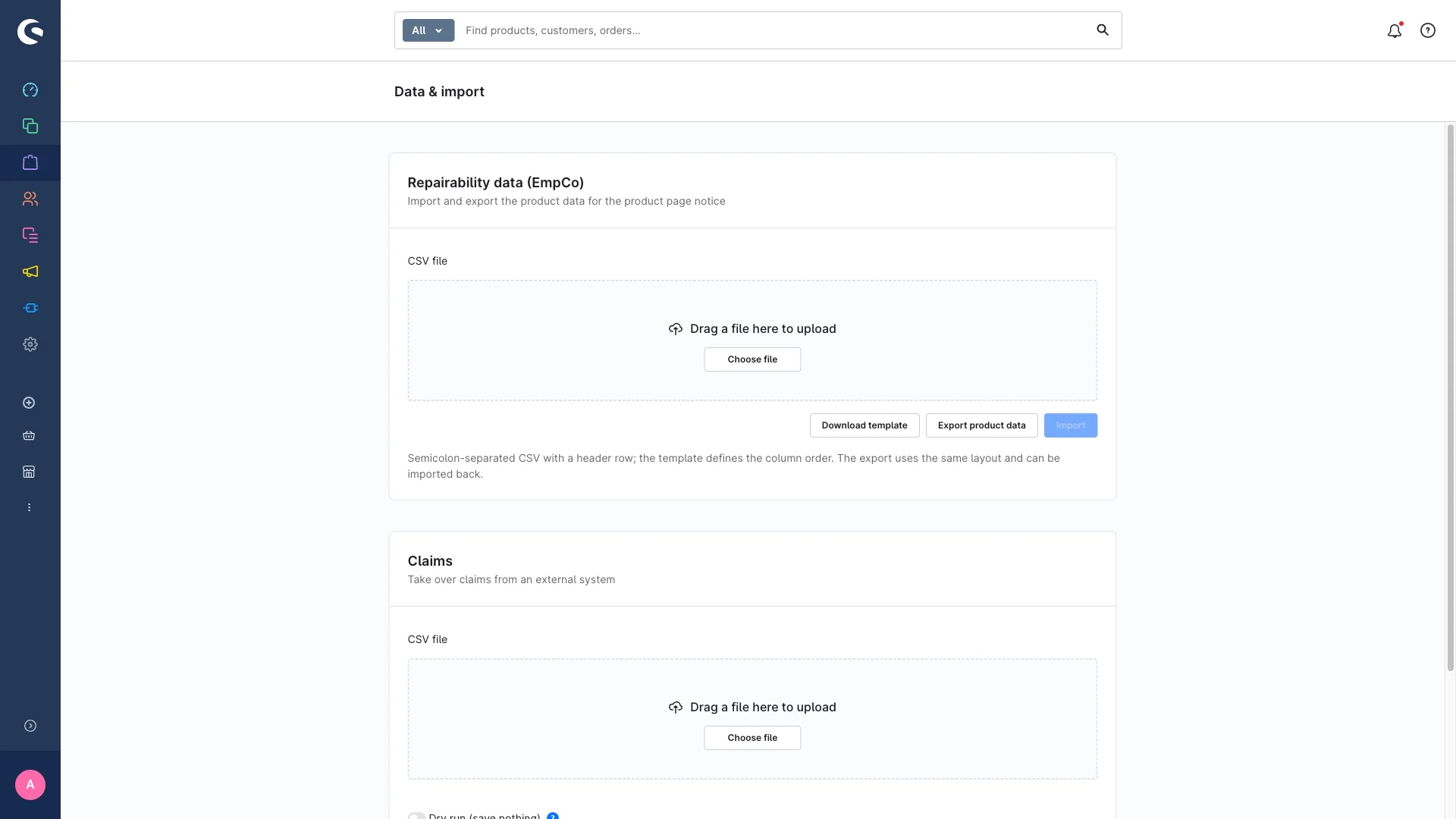
This is how you maintain the EmpCo product info – repairability score, spare-parts details, manufacturer repair page and so on – for many products at once. The import sits on the overview page of the module in the card Import repairability data (CSV).
This import needs the Edit permission – and, because it writes values onto your products, the normal Shopware product permissions as well (view and edit products).
Step 1: In the card Import repairability data (CSV), click Download template.
Step 2: Fill it in – one row per product. Only the product number is mandatory.
Step 3: Pick your file under CSV file and click Import.
Step 4: You get the message "Import finished: … imported, … skipped." Any errors are listed under Import errors.
The imported values land as custom fields directly on the products and – if enabled – appear on the product page. See Product page (EmpCo).
The repairability label image can not be imported by CSV. Maintain it per product in the corresponding custom field.
The columns of the repairability import file
| Column | Required? | Format | Meaning |
|---|---|---|---|
productNumber | required | text | Product number, finds the product. E.g. SW10001 |
repairabilityScore | optional | text/number | The repairability score. E.g. 8.5 |
repairabilityScale | optional | text | The scale of the value. E.g. 10 or A–E |
repairabilitySource | optional | text | Source of the value. We recommend the five technical values below; free text still accepted |
sparePartsInfo | optional | text | Details on spare-parts availability |
manufacturerRepairUrl | optional | URL | Link to the manufacturer's repair page |
warrantyInfo | optional | text | Details of the manufacturer guarantee |
annex2Group | optional | choice | Annex II product group (allowed values below) |
Recommended values for repairabilitySource: manufacturer,
french_repairability_index, eu_energy_label, own_assessment, other.
Allowed values for annex2Group: washing_machine, washer_dryer,
tumble_dryer, dishwasher, refrigerating_appliance, electronic_display,
welding_equipment, vacuum_cleaner, server_data_storage, mobile_phone,
cordless_phone, tablet, light_transport_battery.
Error messages and how to fix them
| Message | What it means | Fix |
|---|---|---|
| "Invalid CSV header. Expected columns: …" | The header row is wrong | Download the template again and move your data into it |
| "Line N: missing product number." | Row N has no product number | Fill in productNumber |
| "Line N: unknown product number '…'." | That product number doesn't exist | Check and correct the product number |
| "Line N: invalid annex2Group '…'. Allowed values: …" | The annex2Group value isn't allowed | Use one of the values listed above |
| "Line N: no values to import for product number '…'." | The row is empty apart from the product number | Fill in at least one more field, or remove the row |
Export repairability data
Download a CSV of everything you've maintained – handy for editing in a spreadsheet and importing back (export → edit → import):
Step 1: In the admin, open Orders → Claims → Data & import.
Step 2: In the Repairability data (EmpCo) card, click Export product data.
Step 3: Your browser downloads the file. The filename contains today's date,
for example empco-product-data-2026-06-22.csv.
The export contains every product that has at least one EmpCo field maintained, in the same column order as the import:
productNumber;repairabilityScore;repairabilityScale;repairabilitySource;sparePartsInfo;manufacturerRepairUrl;warrantyInfo;annex2Group
As with the import, the repairability label image isn't included – it can't be represented as text.
The export needs the View permission. See User permissions.
Where the templates live
Both templates come from the Download template button in their respective card on the overview page of the module:
- Claims template – in the card Import claims (CSV).
- Repairability data template – in the card Import repairability data (CSV).
No legal advice: the exported and shipped texts are samples.