Right to Repair & EmpCo: Claims and Repairability - Product page (EmpCo)
Maintaining the “Repair & warranty” block: repairability score, spare parts, manufacturer data and the optional badge.
This page explains what repair and warranty information your customers see on the product page, how you maintain the data per product, and how to show or hide individual elements.
What your customers see
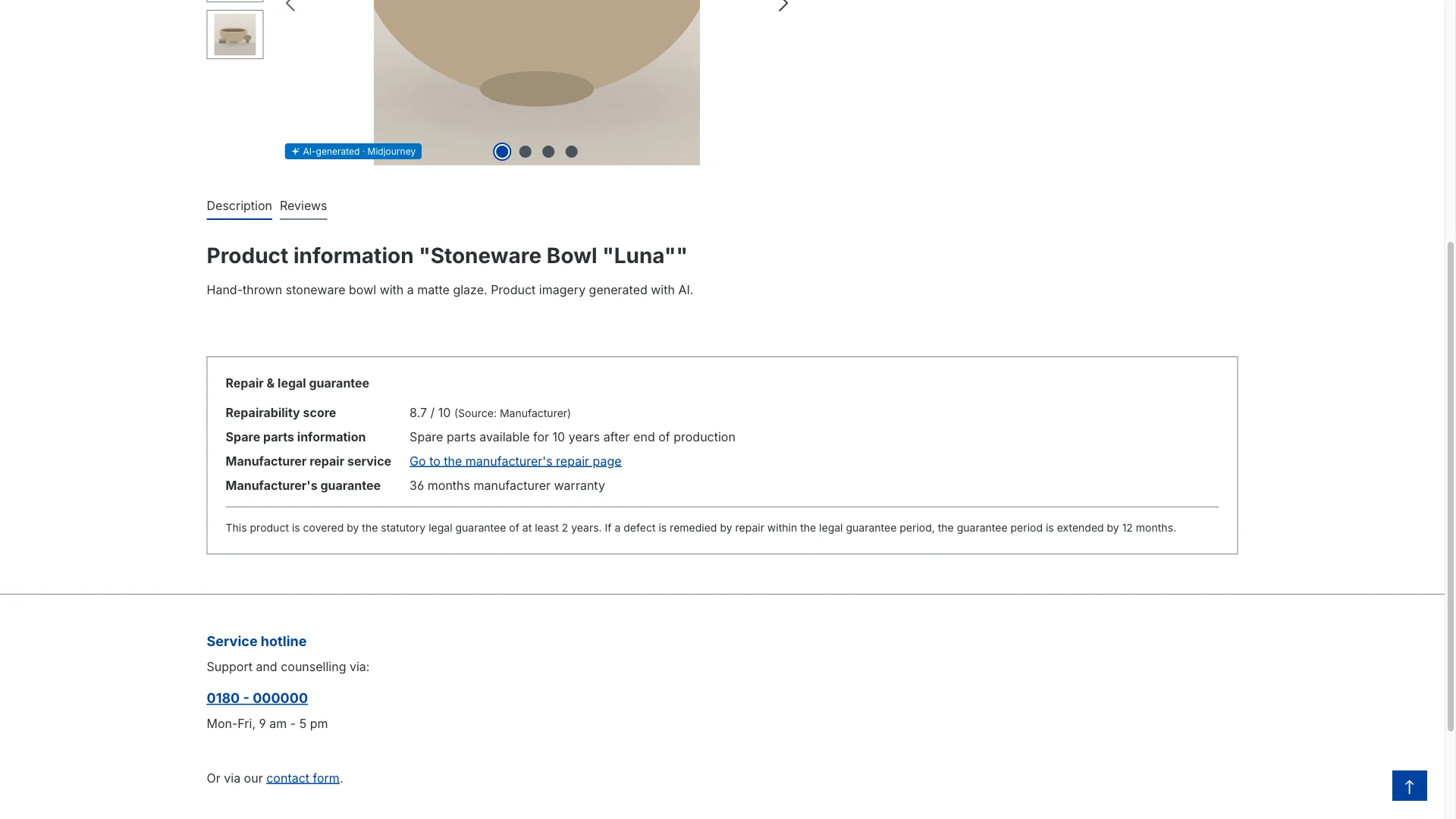
Once you've maintained the data, an extra info block titled Repair & warranty appears on the product page. Depending on your data and your settings it can contain:
| Element | What the customer sees |
|---|---|
| Repairability score | The score with its source, for example "7 out of 10" |
| Repairability label (image) | The label image you stored, next to the score |
| Warranty notice | A note about the statutory warranty and the possible 12-month extension after a repair |
| Spare-parts information | Your details on spare-parts availability |
| Manufacturer repair service | A link to the manufacturer's repair page |
| Manufacturer guarantee | Duration and scope, if maintained |
| "Manufacturer repair obligation" badge | An optional badge (off by default) |
| Disclaimer | An optional note below the block |
When does the block appear at all?
The block is shown only when all of these are true:
- The extension is enabled for the sales channel.
- Product page info active is switched on.
- Show repairability block on product page is on.
- The EmpCo cut-off date (default 27 September 2026) has been reached.
- The product actually has data.
So until you've entered product data, or while the cut-off date is still in the future, your product pages stay exactly as they are. You can prepare in peace. The switches are in the configuration.
Step by step: maintain product data
The data belongs to the product itself. You maintain it either on the individual product or in bulk via import (see Import & export).
For a single product:
Step 1: In the admin, open Catalogues → Products and pick a product.
Step 2: Switch to the Extensions tab (custom fields).
Step 3: Find the field set Right to Repair & EmpCo.
Step 4: Fill in the fields you want (see below). You don't have to fill them all – only filled fields show up on the product page later.
Step 5: Save the product.
The product fields
| Field | What you enter | Appears as |
|---|---|---|
| Repairability score | The value, e.g. "8.5" or a letter like "A" | Repairability score on the product page |
| Scale of the score | The reference scale, e.g. "10" or "A–E" | Completes the value to "… out of 10" |
| Source/label of the score | A dropdown with five values (see below) | Translated source next to the value |
| Spare-parts availability (manufacturer info) | Your details – or leave empty to use the manufacturer default | Spare-parts information |
| Manufacturer repair page (URL) | The web address of the manufacturer's repair page – or leave empty for the manufacturer default | Link "To the manufacturer's repair page" |
| Manufacturer guarantee (duration/scope) | Details of the manufacturer guarantee – or leave empty for the manufacturer default | Manufacturer guarantee |
| Annex II product group | The matching product group (dropdown, see below) | Controls the optional badge |
| Repairability label (image) | An image of the label, e.g. a crop of the energy label | Label image next to the score |
About the label image: you can only pick it directly on the product, not via import. Every other field can be filled by CSV import too.
If you don't set a scale
Leave Scale of the score empty on a product and the extension uses the general maximum from the configuration (Maximum of the repairability scale, default 10). A value of "7" then reads "7 out of 10" on the product page.
Source of the repairability score
Source/label of the score is a dropdown with five values:
- Manufacturer
- French repairability index
- EU energy label
- Own assessment
- Other
The label your customers actually see comes from the snippets
vioveRepairCompliance.detail.source.manufacturer,
.french_repairability_index, .eu_energy_label, .own_assessment and
.other – so you can adjust the wording per language without touching a single
product.
For the CSV import we recommend the five technical values manufacturer,
french_repairability_index, eu_energy_label, own_assessment, other (see
Import & export) – the import
still accepts any free text.
Migration note: if this field used to be free text and a product holds a value that matches none of the five, that value stays stored and is shown on the product page as-is. Open the product in the admin and the field looks empty – just pick one of the five values once.
Manufacturer defaults as a fallback
For spare-parts availability, manufacturer repair page (URL) and manufacturer guarantee you can store a fallback per manufacturer, in the Manufacturer defaults card under Orders → Claims → Settings (see Configuration).
How the fallback works: if one of those three fields is empty on a product and the product's manufacturer has an entry with a value for that field, that value is shown on the product page. A value on the product always wins – the manufacturer default only fills the gaps.
This is the single biggest time saver for large catalogues: one entry per manufacturer instead of the same spare-parts sentence on hundreds of products.
Deliberately excluded: repairability score, scale and source. Those are model-specific – the same manufacturer can score differently across product groups – so they have no manufacturer fallback and stay product data, individually or via CSV.
The "Annex II product group" dropdown
This field assigns a product to one of the product groups named in the legislation and controls whether the optional "manufacturer repair obligation" badge can be shown. Your options:
- Washing machines
- Washer-dryers
- Tumble dryers
- Dishwashers
- Refrigerating appliances
- Electronic displays
- Welding equipment
- Vacuum cleaners
- Servers and data storage
- Mobile phones
- Cordless phones
- Tablets
- Goods with batteries for light means of transport
Leave the field empty if none of them fits.
Show and hide individual elements
You don't have to show everything. In the configuration under Product page blocks there's one switch per element:
| Switch | Default | Effect |
|---|---|---|
| Show repairability score | on | Shows the score, if maintained |
| Show warranty notice | on | Shows the note about the statutory warranty |
| Show repairability label image | on | Shows the stored label image, if any |
| Show spare-parts availability | on | Shows the spare-parts details, if maintained |
| Show link to repair information | on | Shows the link to the manufacturer's repair page |
Switch one off and that element disappears – even if the product has data for it. And every element only ever appears when the product actually has something to show.
The optional disclaimer
Use the snippet vioveRepairCompliance.detail.disclaimer to add your own text
below the block. Leave the snippet empty and no notice is shown.
The "manufacturer repair obligation" badge
The badge is an extra note that only appears when the product is assigned to an Annex II product group and the switch Show "manufacturer repair obligation" badge is on.
This badge is off by default, on purpose. Advertising an obligation that exists by law anyway can be read as advertising with self-evident facts, which is actionable in some markets. Only switch it on deliberately, and ideally after talking to your legal counsel.
You set the badge colour in the configuration under Badge:
| Setting | Default | Effect |
|---|---|---|
| Badge colour | #189eff | Background colour of the badge as a hex value. Invalid values fall back to the default. |
The badge text is changed through the snippet
vioveRepairCompliance.detail.badge in the snippet management.
Editing the texts
The wording of every shipped notice – the warranty notice, the badge text, the disclaimer – is editable in your shop's snippet management. The full list of snippet keys is in Configuration.
No legal advice: all shipped texts are samples. Whether and in what form you have to make these statements depends on your assortment and on the implementation in your market. Please check that case by case.