
Pitching Set
App Store Preview Videos and Promo Videos
Last updated:
Pitching Set creates app previews for your product page and promo videos for Product Hunt, social networks, and your website. Both need Pro and come out of the video editor. You open it from the Video menu in the toolbar, from Videos in Output, or from the File menu with Create App Preview… and Create Promo Video….
App preview or promo video?
The difference is the content and where it goes:
| Feature | App preview | Promo video |
|---|---|---|
| Content | Shows the app itself | Designed freely, uses the drawn device body |
| Where it goes | Belongs on the product page | Meant for other channels |
Don't upload a promo video as an app preview.
App Store preview video requirements
According to Apple, app previews run 15 to 30 seconds, can be up to 500 MB, and may consist only of recordings of the app itself (guideline 2.3.4, checked November 6, 2026). The app enforces the length when exporting.
Create an app preview
You build an app preview from screen recordings of your app, such as from the Simulator.
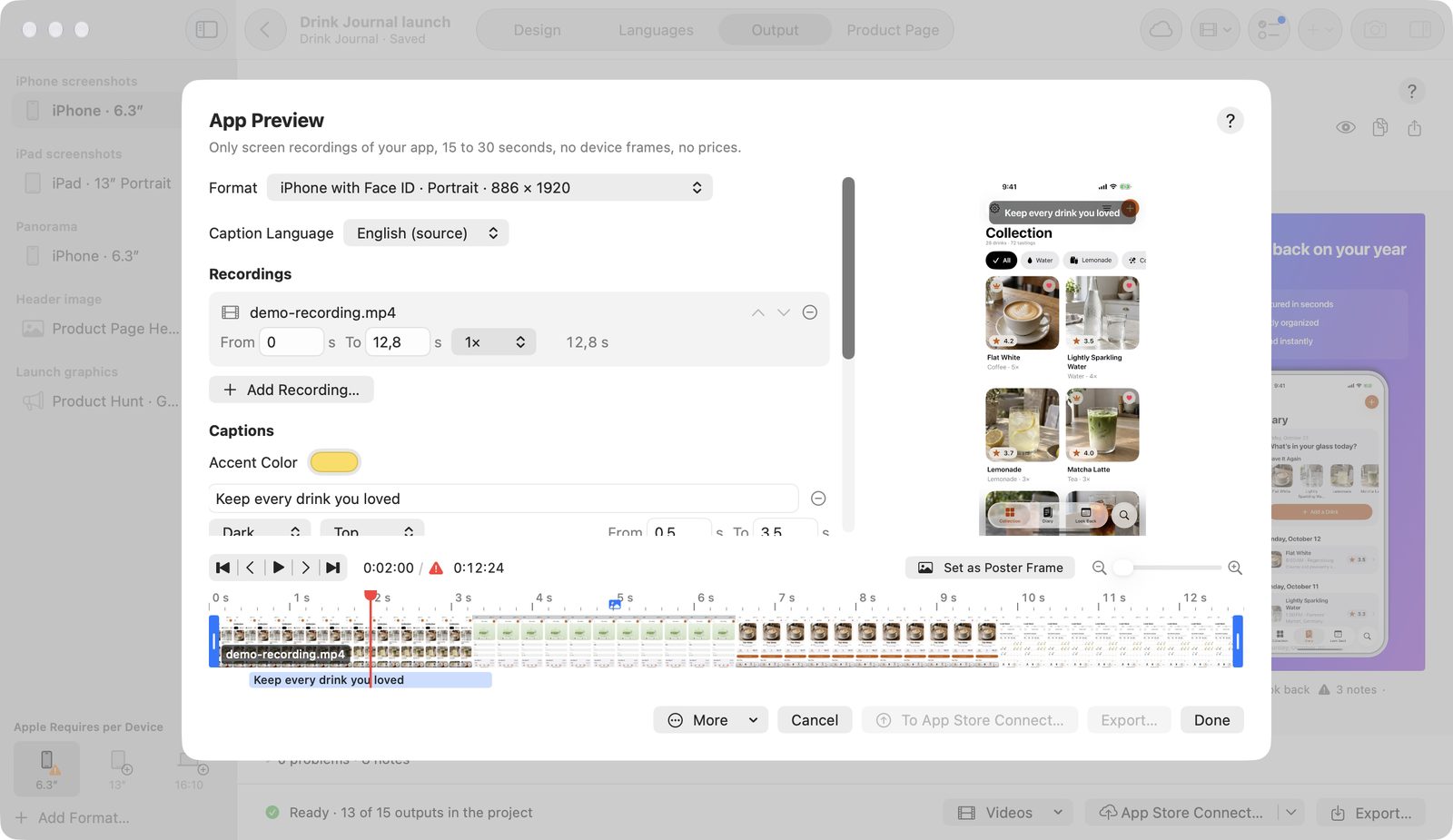
- Choose an iPhone, iPad, or Mac format, then Video → App Preview….
- Under Recordings, click Add Recording… and choose recordings.
- Trim each recording with From and To, and adjust its Speed from 0.5× to 3× if needed.
- Under Captions, add captions in the source language with Add Caption.
- Under Caption Language, choose another language and translate the captions there by hand.
- Turn on Place taps by clicking the preview and click where the tap happens. Add Tap at Center adds a tap without a click.
- Add music you have the rights to with Add Music….
Recordings are only linked, not copied into the project. If one is missing, Locate Recording… helps. The app trims videos that run too long to 30 seconds and puts a fade between recordings.
App Store preview video size
The app suggests the matching format.
| Format | Pixels (W × H) |
|---|---|
| iPhone with Face ID | 886 × 1920, landscape 1920 × 886 |
| iPhone with Home Button 5.5″ | 1080 × 1920, landscape 1920 × 1080 |
| iPhone 4.7″ | 750 × 1334, landscape 1334 × 750 |
| iPad | 1200 × 1600, landscape 1600 × 1200 |
| Mac | 1920 × 1080 |
Captions, taps, and music
| Element | What you set |
|---|---|
| Captions | Style (dark, light, accent), position (Top, Middle, Bottom), and time range, per language |
| Tap Indicators | Show where a tap happens. Go There jumps to the moment, Remove deletes it. |
| Music | Volume, a start time from 0 to 300 seconds, and fade in and out |
| Ending | A text over the darkened last frame (2.5 seconds), such as Subscription required, per language |
Checks
The app blocks the export if the video isn't between 15 and 30 seconds, a recording is missing, a translation is empty, or a tap lies outside. It warns when a caption shows for less than 2 seconds or music is missing. The messages are in Troubleshooting.
Finish
- The Timeline has a ruler, handles, zoom, and a waveform of the music.
- Set as Poster Frame above the Timeline makes the frame at the Playhead the poster frame. A marker shows it.
- Export… writes the video in the language shown.
- Under More, All Languages… writes one file per language, Save Poster Frame… a PNG, Subtitles… an
.srtfile, and Subtitles for All Languages… one per language.
To App Store Connect… uploads the video for this language, with its poster frame, to the product page. This works only for versions in preparation. The app detects full slots (three per size) up front. The steps read Reserving a spot…, Uploading…, Apple is processing the file…, and Placing it on the product page….
Files are MP4 H.264 at 30 fps with AAC stereo, named “<Name> <Language> <W>x<H>.mp4”.
With the keyboard
As long as no text field is active, these keys control playback.
| Key | Effect |
|---|---|
| Space | Play, pause |
| J, K, L | Reverse, pause, forward |
| ←, → | One frame back, forward; one second with ⇧ |
| Home, End | Go to the start, go to the end |
| P | Make the frame at the playhead the poster frame |
| ⌘+, ⌘− | Zoom the timeline |
Create an app promo video
A promo video turns your images into a film for social media, your website, or Product Hunt.
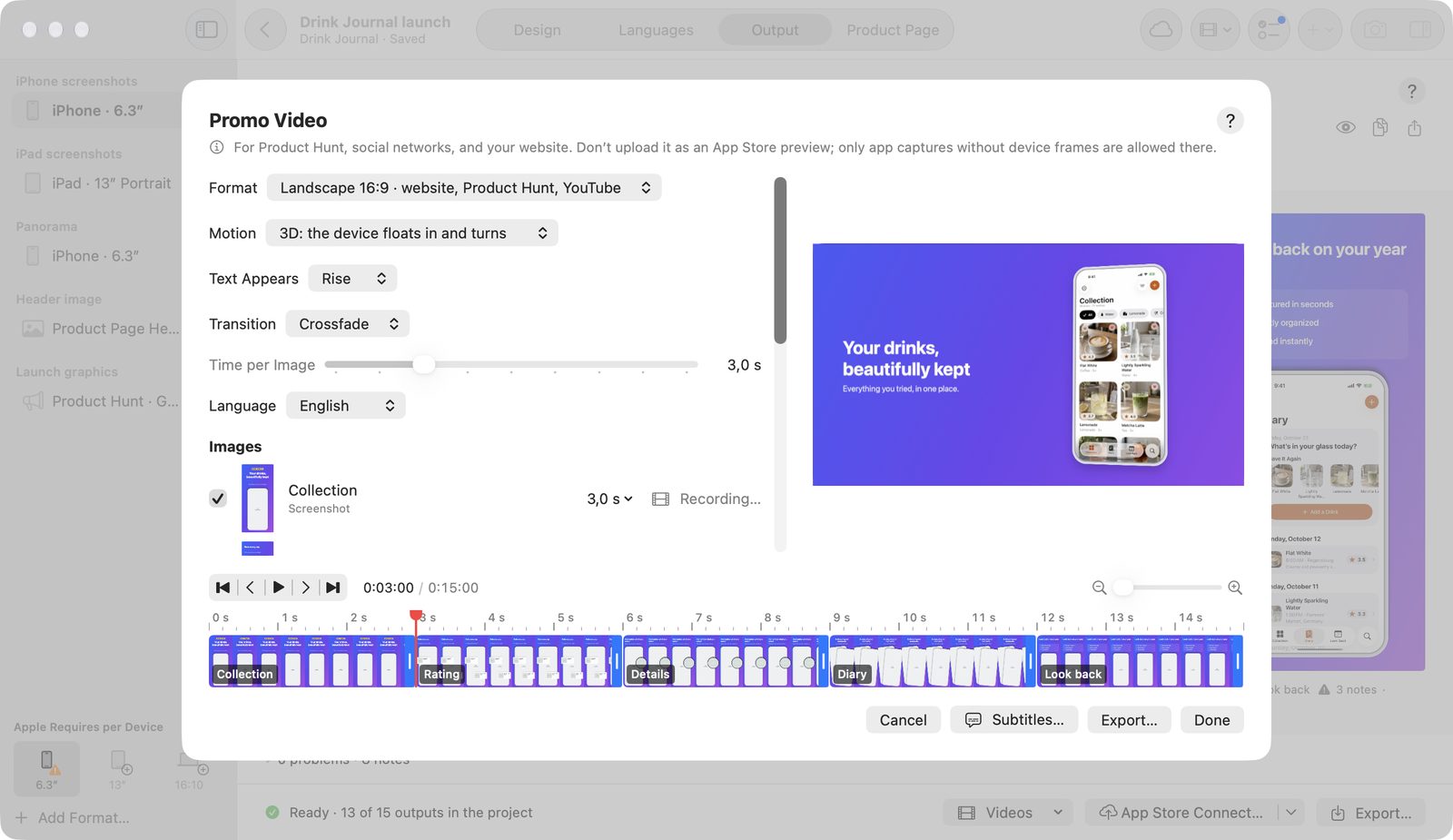
- Choose Video → Promo Video….
- Choose an aspect ratio under Format.
- Set Motion, Text Appears, Transition, and Time per Image.
- Choose your images under Images. If you like, use Recording… to play a screen recording in the device instead of the screenshot.
- Under Opening and Ending, set the opening and closing cards, with Show app icon if you want it.
- Add music and choose the language.
- Click Export….
| Setting | Values |
|---|---|
| Format | Landscape 16:9 (1920 × 1080), Square 1:1 (1080 × 1080), Portrait 9:16 (1080 × 1920), Portrait 4:5 (1080 × 1350) |
| Motion | 3D, Slide, Calm, Push In |
| Text Appears | Rise, Fade, Pop, Wipe |
| Transition | Crossfade, Push, Zoom, Cut |
| Time per Image | 2 to 6 seconds, also per image |
| Opening card (2 s), Closing card (2.5 s) | Title, line, and optional app icon |
Suggestions writes lines for the cards with Apple Intelligence. The output is MP4 H.264 at 12 Mbit/s and 30 fps, with SRT subtitles.
Promo videos always show the app's own drawn device body, because Apple frames are never animated.
Free and Pro
All videos belong to Pro: app previews, promo videos, and their export. The menus show this with “· Pro”. Suggestions also needs a Mac with Apple Intelligence.