
Pitching Set
App Store Keywords, Subtitle, and Product Page Texts
Last updated:
In Product Page mode (⌘4), you write your App Store listing texts for each language, within the App Store keywords limit and the subtitle character limit. Pitching Set checks them against Apple's limits.
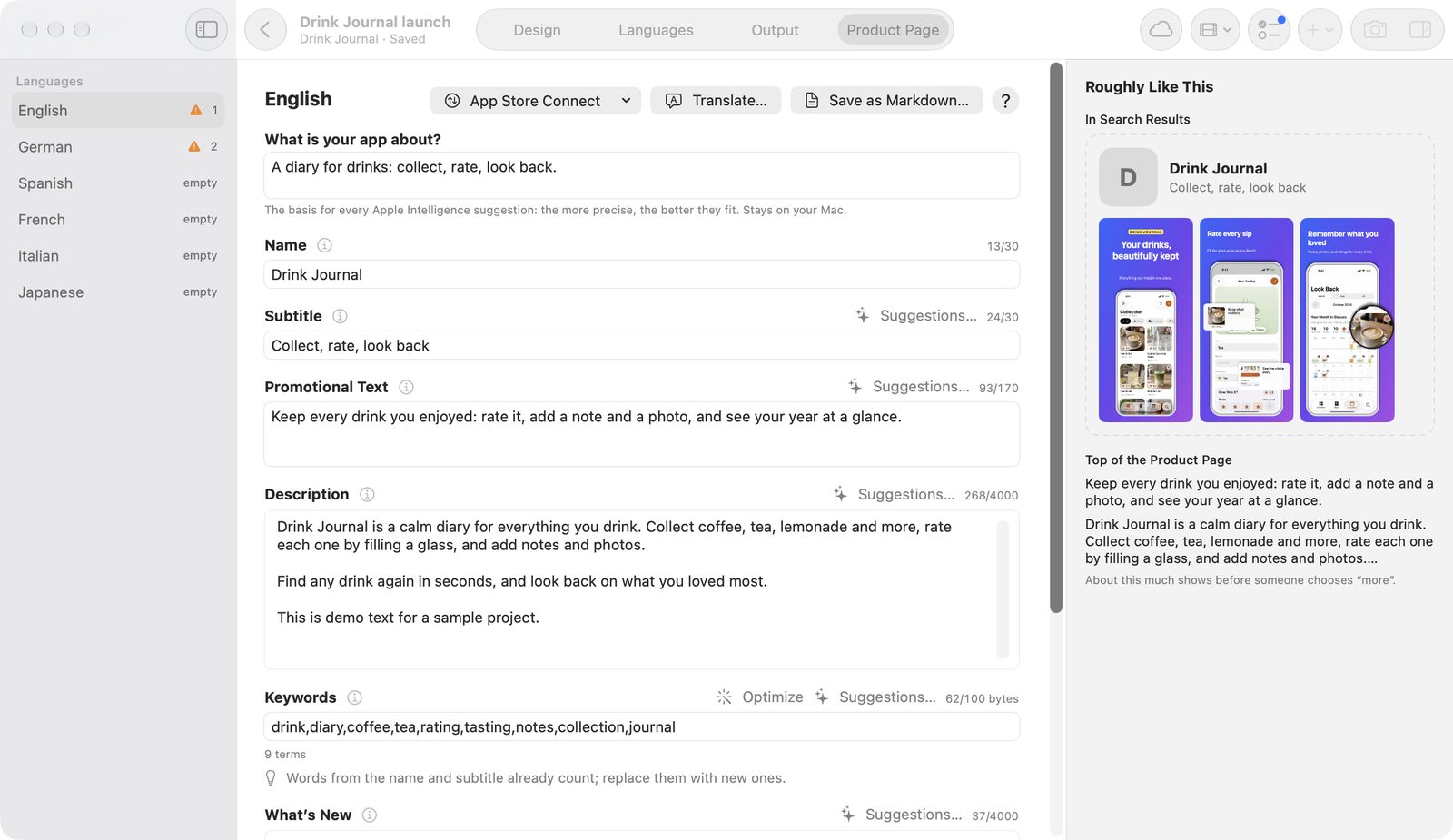
Fields and limits
Each field shows how much room is left. The limits are built into the app; as of November 6, 2026.
| Field | Limit |
|---|---|
| Name | 30 characters |
| Subtitle | 30 characters |
| Promotional Text | 170 characters |
| Description | 4000 characters |
| Keywords | 100 bytes (UTF-8), separated by commas |
| What’s New | 4000 characters |
| Support URL | required, https |
| Marketing URL | https |
Promotional text vs description
According to Apple, promotional text doesn't affect search (checked November 6, 2026). The description holds the full text about your app, in up to 4000 characters.
Write texts
- Choose a language on the left. The languages of your images come first, then languages with texts only.
- Fill in the fields. Saving happens automatically, when you change language, and when you leave.
- Read the messages at each field and fix errors.
The language list shows “empty”, Translation outdated, the number of errors, or a green check for each language.
What the app checks
| Level | What the app reports |
|---|---|
| Errors | too long, name missing or too short, description or support URL missing |
| Warnings | no, duplicate, or too short keywords, price or ranking words in name, subtitle, or keywords, addresses without https |
| Tips | no subtitle, subtitle repeats the name, long first paragraph, no promotional text, no What’s New, spaces after commas, keywords repeating name or subtitle |
Optimize keywords
Optimize removes spaces, duplicate terms, and words from name and subtitle from the keywords, and trims them to 100 bytes.
Preview
In Search Results and Top of the Product Page under Roughly Like This show an approximate view with icon, name, subtitle, the first three screenshots, promotional text, and description. The App Store itself can look different.
Suggestions with Apple Intelligence
Apple Intelligence writes suggestions for subtitle, promotional text, keywords, What's New, and description on your Mac. That needs Pro.
- Describe your app in one sentence under What is your app about?. The app saves this per app.
- Click Suggestions… at a field.
- Click Use next to a suggestion you like.
You get six subtitles, six promotional texts, 20 search terms, three versions from Write What’s New based on notes, or one description. Price words are filtered out. Check suggestions before you use them.
Translate and outdated fields
Translate… translates the texts into other languages with Apple Translation. That needs Pro.
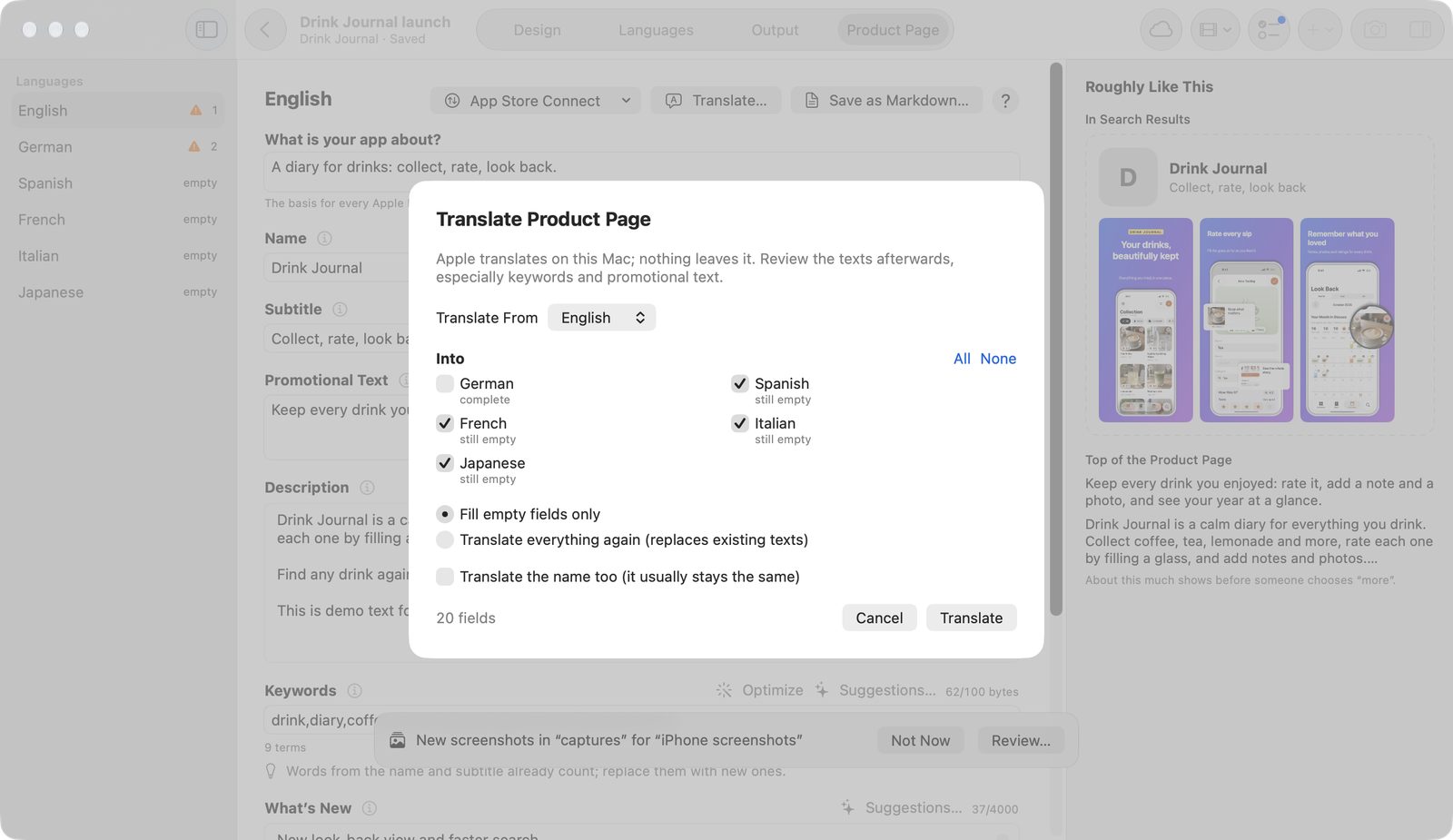
- Click Translate….
- Choose the source under Translate From and the target languages under Into. None clears the choice. The list shows each state, such as still empty.
- Under Scope, choose Fill empty fields only or Translate everything again (replaces existing texts).
- Leave Translate the name too (it usually stays the same) off unless you want that.
- Click Translate.
Stop halts the run. Languages already translated stay, as one step ⌘Z takes back.
Keywords come back as a cleaned-up list within 100 bytes; the app trims other fields to their limit.
If you change the source text later, translated fields count as outdated. A note “Older than the text in …” names the source. Update… translates exactly those fields again.
Texts per platform
If your app has formats or versions for more than one platform, Platform appears with Shared, iOS, macOS, and if needed visionOS and tvOS.
- Name and Subtitle say Applies to every platform, because App Store Connect shares them.
- In a platform, the other fields show Shared text until you choose Adapt for macOS.
- Custom text for macOS has the button Use the Shared Text.
- Translate Texts for macOS translates only that platform's own texts.
Errors of other platforms appear as jump buttons. Checks and preview show the text the platform really gets.
Texts as files
- Save as Markdown… or File → Export Texts → Product Page as Markdown… saves the texts. That's free.
- Product Page as fastlane Folder… writes a folder in fastlane layout. That needs Pro.
- File → Import Texts… reads such a file or a fastlane
metadatafolder. The app asks before taking over changed fields. That needs Pro. - Remove Texts… empties a language's texts.
The App Store Connect menu
The menu at the top loads and sends texts:
- Sync Languages, Texts, and Screenshots…
- Load from App Store Connect…
- Send to App Store Connect…
- Restore an Earlier State…
- Ready to Submit?…
If needed, the app connects first. See App Store Connect.
In an empty project, the page offers Load… to fetch existing texts.
Free and Pro
All fields, the checks, Optimize, the preview, and the Markdown export are free.
Suggestions…, Translate…, Update…, the fastlane export, and importing text files need Pro.
The App Store Connect menu needs Pro as well.