
Pitching Set
Pitching Set Mac Integration
Last updated:
Pitching Set connects with macOS through Spotlight, the Dock, Services, Shortcuts, notifications, Settings, Help, and accessibility. Everything here is free unless noted otherwise.
Open projects quickly
Spotlight finds apps, projects, and sets. A click on a result opens the project in the background.
The Dock menu lists up to five recent projects and New App…. Open Recent in the File menu shows recent projects.
The Finder shows a preview for project packages.
Hand images to Pitching Set
If you drag images onto the Dock icon, they go into the open or the most recent project.
The service Add to Pitching Set in the Finder's context menu adds the chosen images.
Import from iPhone in the File menu takes a photo with a nearby iPhone or iPad, see Editor.
Shortcuts
The Shortcuts app offers actions from Pitching Set, such as for the end of a pipeline.
| Action | Effect | Pro |
|---|---|---|
| Open Project | Opens a project | no |
| Export Images | Writes the ready outputs of a project or set to a new dated folder. The first time, Pitching Set asks for the destination folder; after that, it exports without asking. Choose Folder Again asks again. | only free outputs without Pro |
| Run Export Check | Checks all outputs and names the number of problems and the first few. Changes nothing. | no |
| Show Export Report | Opens a project in Output | no |
| Import Captures Folder | Adds images from the folder linked to a set, as one step ⌘Z takes back | yes |
An action that opens something stops and gives the reason if a text field is active. The same happens if Pitching Set is showing another project with changes ⌘Z can still take back.
Dock and notifications
While exporting several images and during a counted transfer, the Dock icon shows a bar. When longer work of 10 seconds or more ends while the app is in the background, the icon bounces once.
Notifications come only when the app is in the background:
- Export finished from two images up, with the action Show in Finder
- “Languages in App Store Connect”
- “Screenshots in App Store Connect”
- without a sound: the confirmation that Apple has processed all images
The app asks for permission only at the first long operation, never at launch.
Settings
You open Settings with ⌘,. The app remembers the tab you chose last.
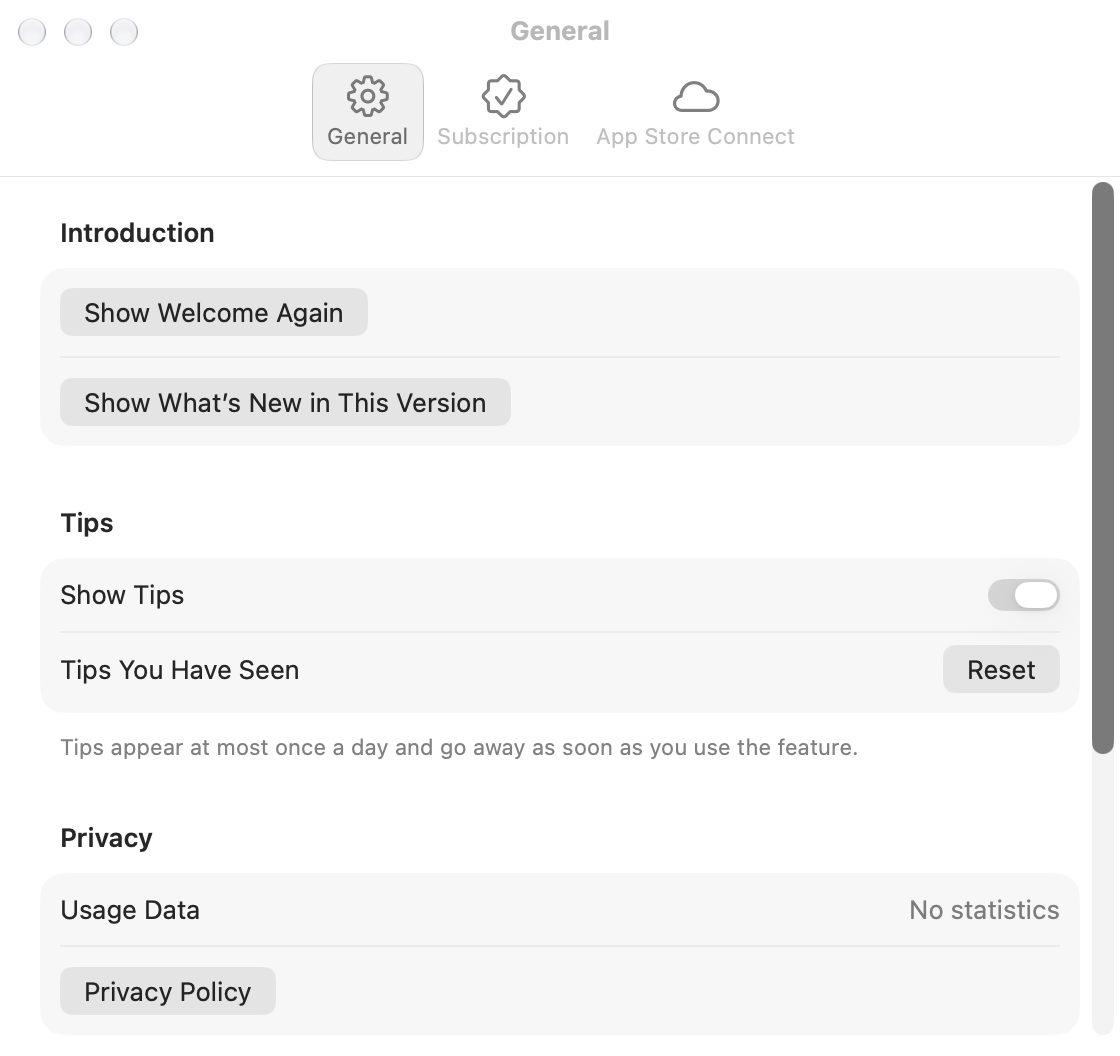
General
| Area | Contents |
|---|---|
| Introduction | Show Welcome Again and Show What’s New in This Version |
| Tips | Show Tips turns tips on or off. Reset restores Tips You Have Seen. |
| Privacy | Usage Data shows No statistics, and a button next to it leads to the Privacy Policy. |
| Help | Links, including App Store Marketing Guidelines |
Subscription
Subscription shows the state, Next Renewal, and the buttons, see Pro and pricing.
App Store Connect
The App Store Connect tab manages keys and reachable apps, see App Store Connect.
AI Connection
The AI Connection tab switches the local MCP server, shows Connected Clients and sets up a client, see AI connection.
Help and tips
The Help menu contains:
| Group | Menu items |
|---|---|
| Help | Pitching Set Help (⌘?), Welcome to Pitching Set, What’s New in This Version, Keyboard Shortcuts (⌘/) |
| Specifications | App Store Image Specifications, Creative Asset Specifications |
| Support | Contact Support…, Viovenia Support Page |
| Legal | Privacy Policy, Terms of Use (EULA), Legal Notice |
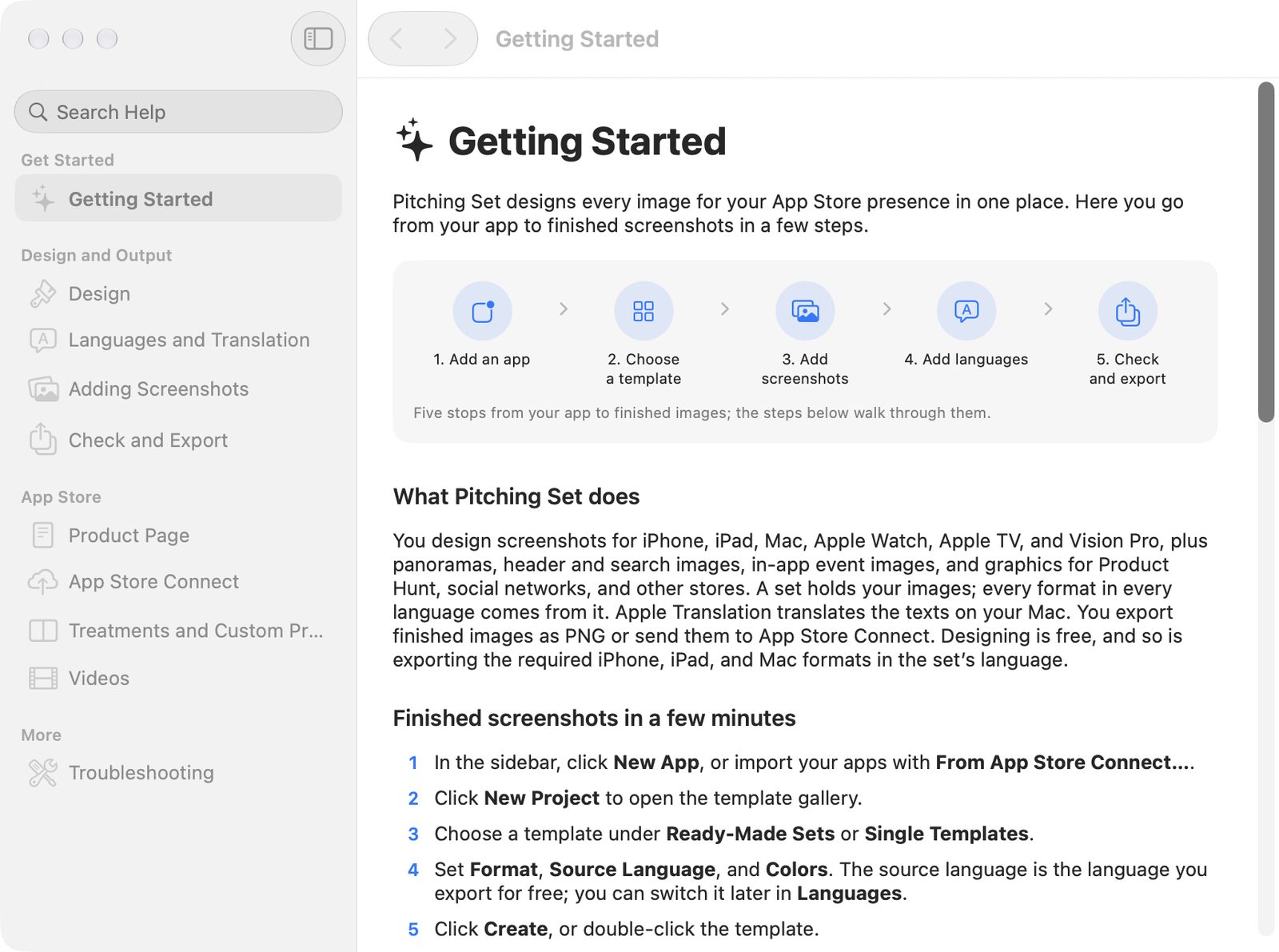
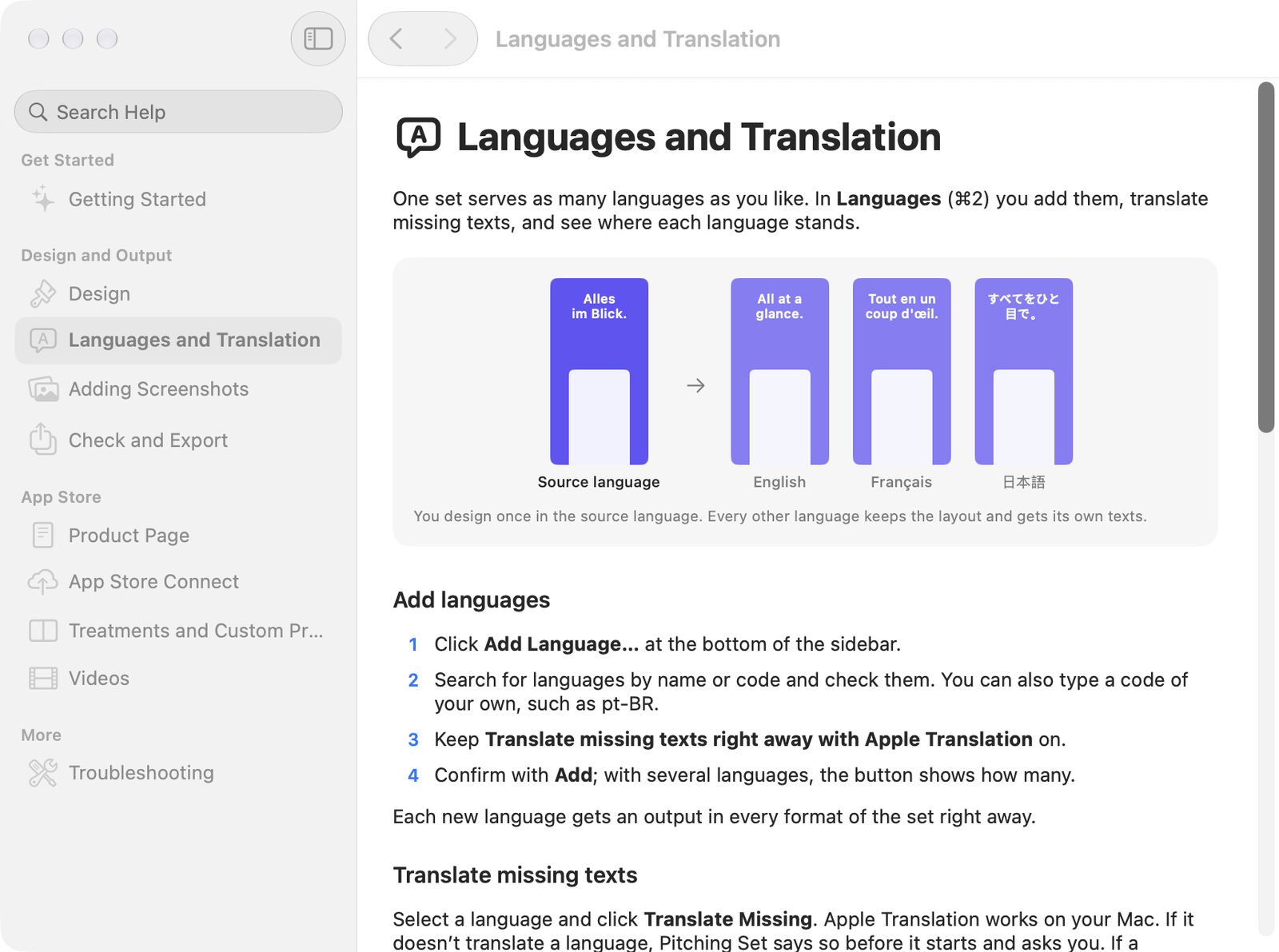
- Help has topics in the groups Get Started, Design and Output, App Store, and More. You can search it without a network (Search Help). ⌘[ and ⌘] go back and forward.
- Help buttons with a question mark open the matching topic in Languages, Output, Product Page, the App Store Connect window, the import sheet, and the inspector.
- Contact Support… writes an email with the app and macOS version, without any project content. Without a mail app, the contact page opens.
What's new
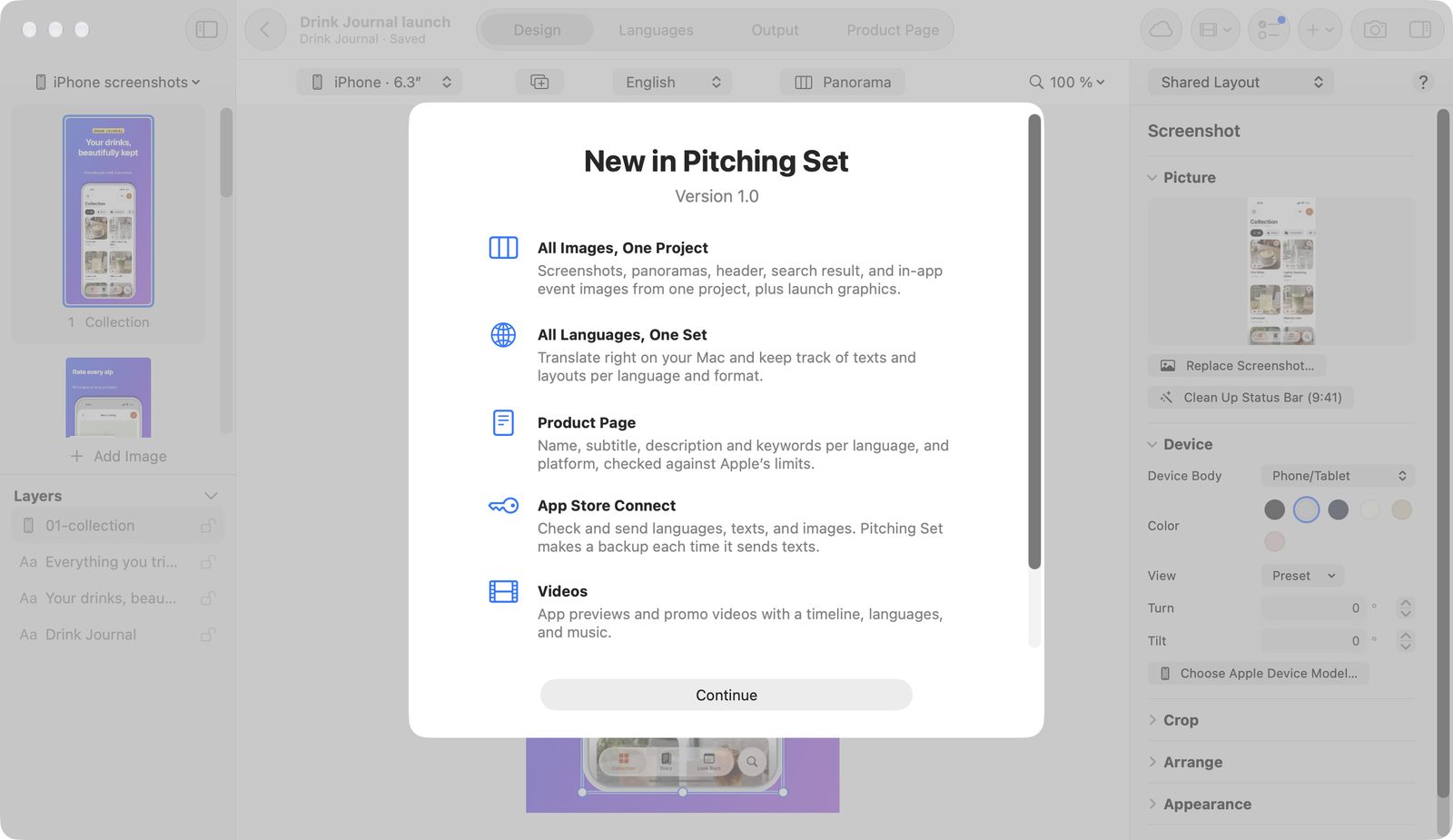
New in Pitching Set appears once per version if there's something new. You call it up again through Help and Settings.
Tips
Tips about features people often miss appear once, at most one per day, and disappear after first use. There are three: Fill Every Gap at Once, Change for One Language Only, and Drag an Image Out.
Rating
After the third successful export or the third confirmed transfer, the app asks for a rating through the system, at most once per version. The system decides whether anything appears. The request waits until no sheet is open and no transfer is running.
Main window and basic behavior
The main window opens at every launch, at least 1000 × 680 points in size. At launch, the project last open opens again. The app remembers the last set, image, output, zoom, and mode per project.
- Short notes instead of success dialogs appear as a capsule at the bottom of the window and go away by themselves. With Show in Finder, they stay longer.
- Errors appear as an alert with a text naming the next step.
- When quitting, the app takes over text being typed and writes pending saves. If not everything is saved yet, it asks with Don’t Quit and Quit Anyway.
- About Pitching Set in the app menu names the provider Viovenia UG (haftungsbeschränkt) and leads to Terms of Use, Legal Notice, and Privacy.
When two copies are running
A workspace belongs to one running copy only. A second one shows Pitching Set Is Already Running and changes nothing. Switch to the Other Copy takes you to the running one. As soon as you quit it, the second one continues by itself.
Accessibility
Pitching Set supports VoiceOver, keyboard control, and Reduce Motion.
- Objects on the canvas have a name and their text content as a value, and you can select them without a pointer. ⇥ and ⇧⇥ step through objects, and the selection gets announced.
- Panorama objects, output previews, project cards, and text suggestions have VoiceOver actions. The video timeline's slider moves in steps of ±0.5 seconds.
- Notes, exports, created languages, and transfer results are announced, as is each step of downloading Apple frames.
- The editor's status line stays while VoiceOver is reading it.
- The text comparison is spoken, and status symbols are labeled.
- With text suggestions, the suggestion and Use are separate buttons for Voice Control.
- Return and Esc work in all sheets.
- Reduce Motion applies to the welcome window, the progress display, and the snap after importing captures.
The app never shows status by color alone: warnings, errors, and successes color their symbol, and the text stays in the text or secondary color.
Privacy and security
Pitching Set works locally and without an account. There are no servers of its own and no analytics, tracking, or advertising services.
| Area | Rule |
|---|---|
| Network | There are connections only when you start a function, and only to Apple: App Store Connect, Apple's Design Resources for device images, Apple's image servers for the app icon, and the App Store for purchases. |
| Translation and text | According to Apple, translation, text suggestions, and text recognition run on the Mac. |
| Keys | The App Store Connect key is stored only in this Mac's keychain, without iCloud sync. |
| Files | Logs, receipts, and backups are in the workspace with restricted file permissions. |
| Images | The app reads only PNG, JPEG, and HEIC and checks them before decoding. |
| Apple frames | Never included or copied into project packages. |
The privacy policy is in the app under Help → Privacy Policy. The app doesn't replace legal advice.
Free and Pro
Spotlight, the Dock, Services, notifications, Help, Settings, and all Shortcuts actions except Import Captures Folder are free. Export Images writes only free outputs without Pro.