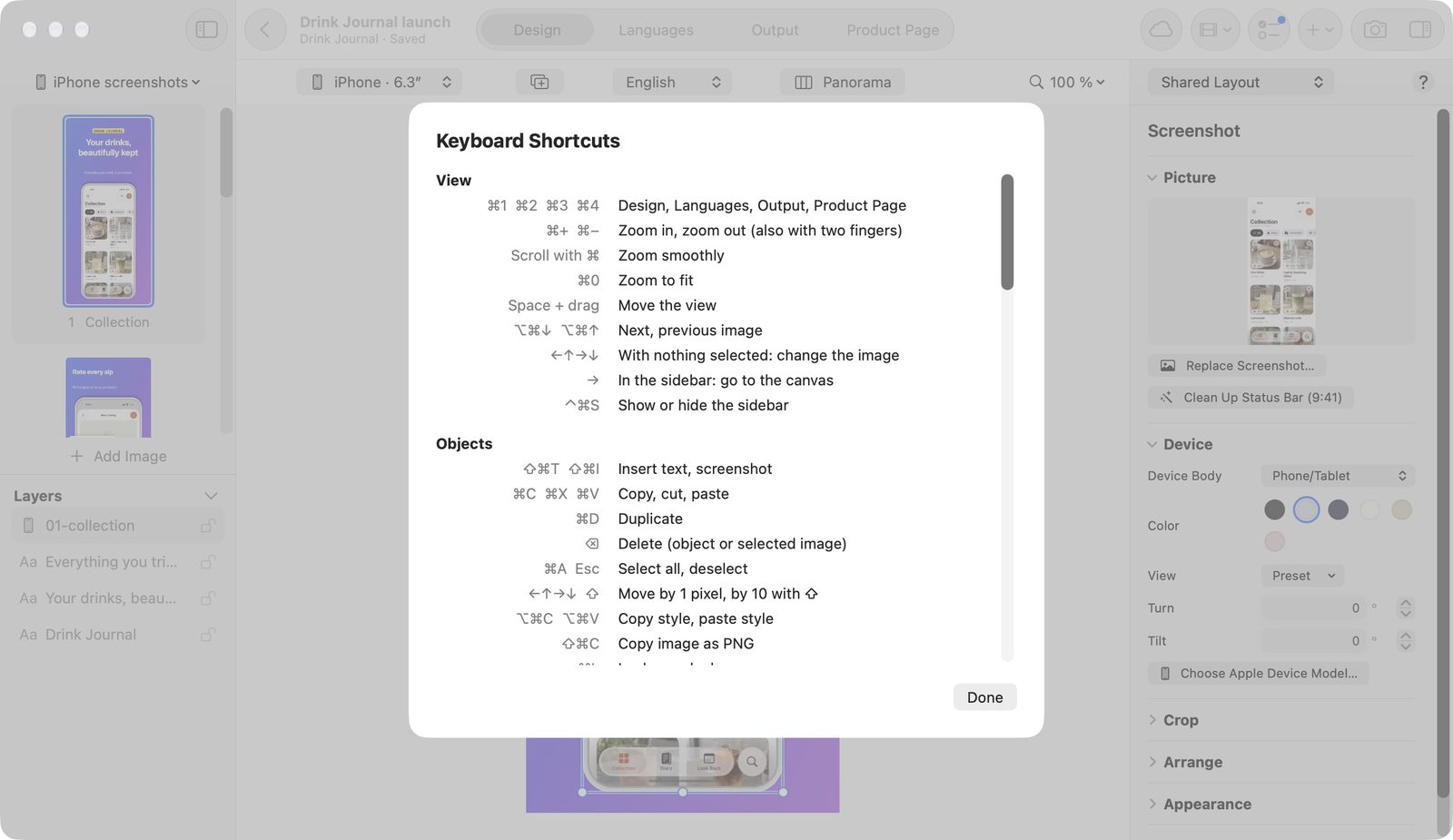
All Pitching Set keyboard shortcuts are free; the commands behind them may need Pro. In the app, Keyboard Shortcuts (⌘/) in the Help menu shows the same overview as these tables.
The overview in the app, opened with ⌘/. View Shortcut Effect ⌘1, ⌘2, ⌘3, ⌘4 Design , Languages , Output , Product Page ⌘+, ⌘− Zoom in, zoom out, also with two fingers Scroll with ⌘ Zoom smoothly ⌘0 Zoom to Fit Space + drag Move the view ⌥⌘↓, ⌥⌘↑ Next Image , Previous Image ←↑→↓ With nothing selected: change the image → In the sidebar: go to the canvas ⌃⌘S Show or hide the sidebar
Objects Shortcut Effect ⇧⌘T, ⇧⌘I Insert text, screenshot ⌘C, ⌘X, ⌘V Copy, cut, paste ⌘D Duplicate ⌫ Delete (object or selected image) ⌘A, Esc Select all, deselect ←↑→↓, ⇧ Move by 1 pixel, by 10 with ⇧ ⌥⌘C, ⌥⌘V Copy Style , Paste Style ⇧⌘C Copy Image as PNG ⌘L Lock or Unlock Double-click Edit text, replace screenshot ↩ Edit the selected text ⇥, ⇧⇥ Select the next, previous object ⌃⇥, ⌃⇧⇥ Leave the canvas ↑↓, ⇧, Esc Number field: change, by 10 with ⇧, discard
Arrange and drag Shortcut Effect ⌘], ⌘[ One layer forward, back ⇧⌘], ⇧⌘[ To the front, to the back Drag with ⇧ Move only horizontally or vertically Drag with ⌘ Without snapping to guides Drag with ⌥ Drag a copy, the original stays Drag on empty space Select several objects, add with ⇧ Handle with ⌥ Resize from the center Handle with ⇧ or ⌘ Keep the aspect ratio Rotation handle with ⇧ Rotate in 15° steps Rotation handle with ⌘ Rotate without snapping Esc While dragging: cancel
Text Shortcut Effect ⌘:, ⌘; Show spelling, check text now Return, Esc On the canvas: accept, discard
Projects and sets Shortcut Effect ⌘N, ⇧⌘N New Project… , New Set… ⌘O Import Project… ⌘W, ⇧⌘W Close the window, Close Project ←↑→↓, ↩ In the overview: select, open Space In the overview: show Quick Look ⌥⌘P Present Set ⌘F Search Projects ⇧←↑→↓, ⌘A Select several projects, select all ⌘⌫ Move the selected project to the Trash ⌘D Duplicate the selected project or set ⌥⌘↑, ⌥⌘↓ Move the selected set up or down ⌫ Delete the selected set Double-click a template Create right away
Project Shortcut Effect ⌘S Save, otherwise automatic ⇧⌘E Export Images… ⌘Z, ⇧⌘Z Undo, redo ⌘F Find and Replace… ⌥⌘N Add Image ⌘? Pitching Set Help ⌘[, ⌘] In Help: back, forward ⌘/ Keyboard Shortcuts ⌘, Settings ⌘Q Quit
Languages Shortcut Effect ⇥, ↩ Next text field ⇧⇥ Previous text field ↑↓ In the first or last line: change field ⌘E Mark the selection as an accent
Output Shortcut Effect ←, →, Home, End Choose an image, several with ⇧ Space Quick Look ↩ Open the image in Design Esc Deselect
In Output, ⌘A selects all images and ⌘C copies the selected one.
Video Shortcut Effect Space Play, pause J, K, L Reverse, pause, forward ←, → One frame back, forward; one second with ⇧ Home, End Go to the start, go to the end P Make the frame at the playhead the poster frame ⌘+, ⌘− Zoom the timeline
Return confirms, Esc closes a sheet. This applies to all sheets in the app.
All shortcuts work in the free version. If a shortcut triggers a Pro feature, the purchase page appears. Copy Image as PNG (⇧⌘C), for example, asks for a Pro output the same way Output does.