
Pitching Set
Localize App Store Screenshots
Last updated:
In Languages mode (⌘2), you add languages, translate missing texts, and see where each language stands. A set works for any number of languages, so you localize App Store screenshots once and get them in every format.
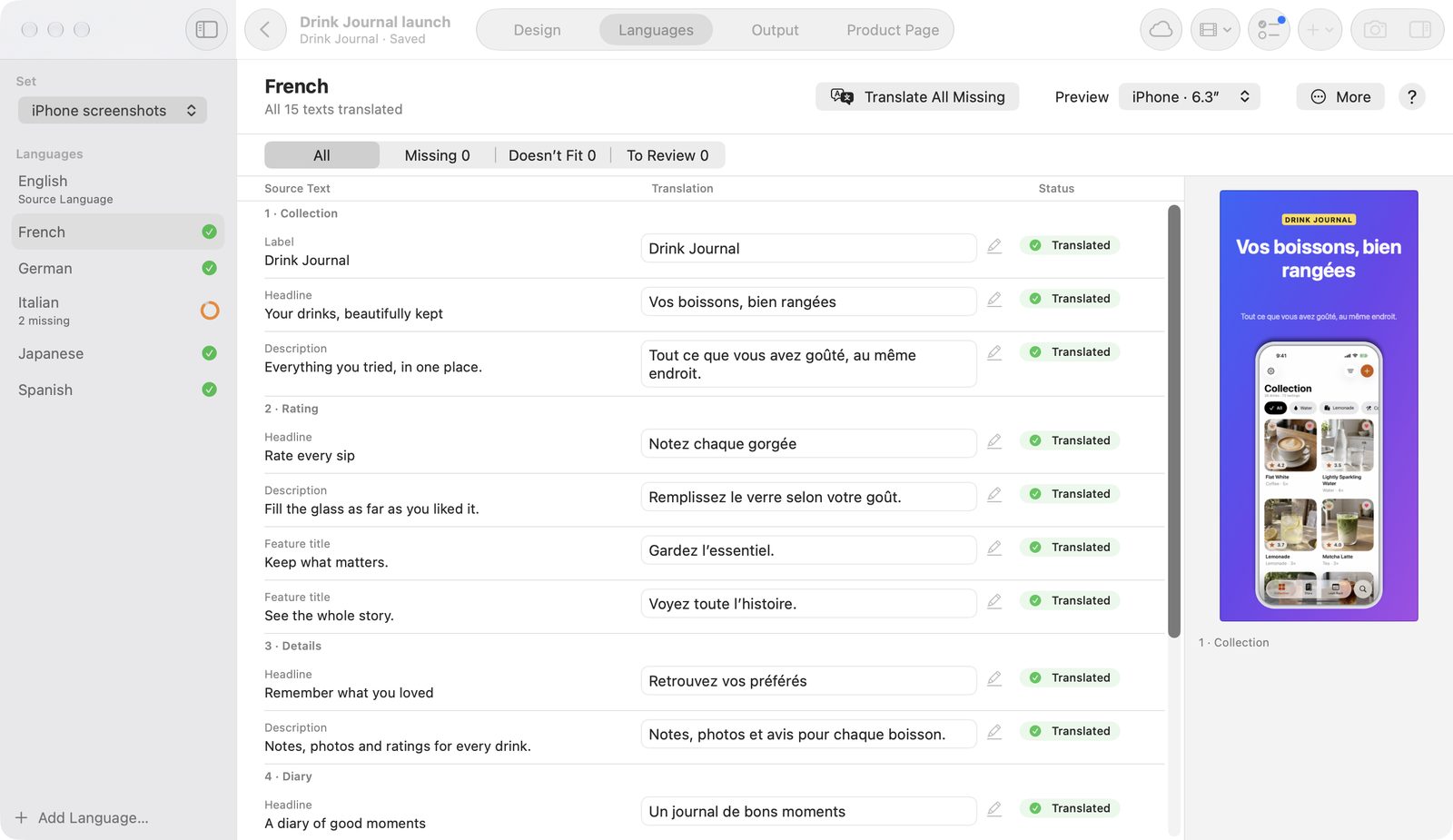
Add languages
Each new language immediately gets an output in every format of the set.
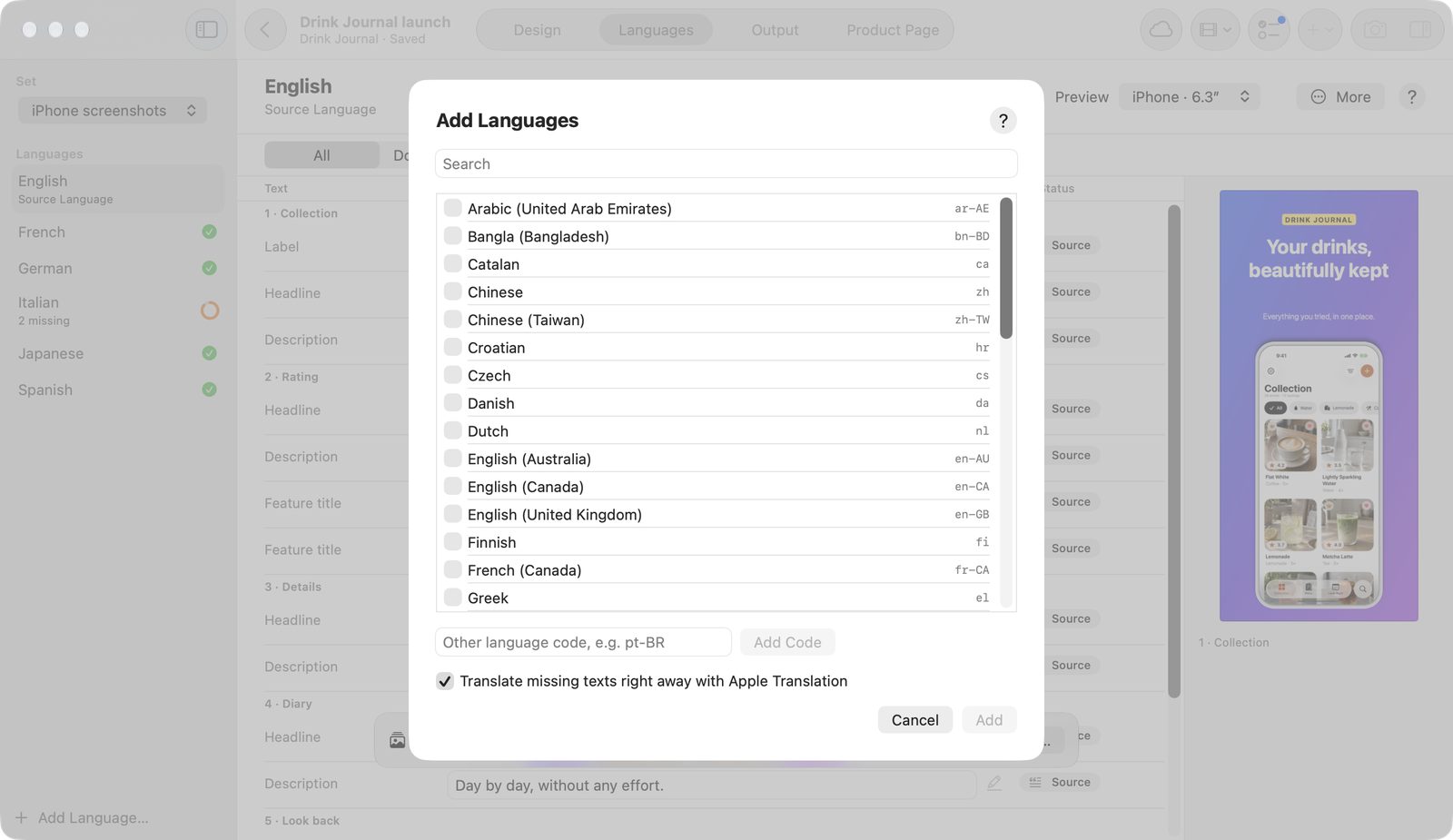
- At the bottom of the sidebar, click Add Language….
- Search for languages by name or code and tick them. Enter your own code such as pt-BR under Other language code, e.g. pt-BR.
- Leave Translate missing texts right away with Apple Translation on if you have Pro.
- Confirm with Add. With several languages, the button names the number.
The sheet offers each App Store language once, plus all languages Apple Translation knows on this Mac. You can add up to 30 languages per step. Language names come from the system. Region or script appear only when two languages would otherwise have the same name.
Translate missing texts
Apple Translation translates missing texts on your Mac when you click Translate Missing. That needs Pro.
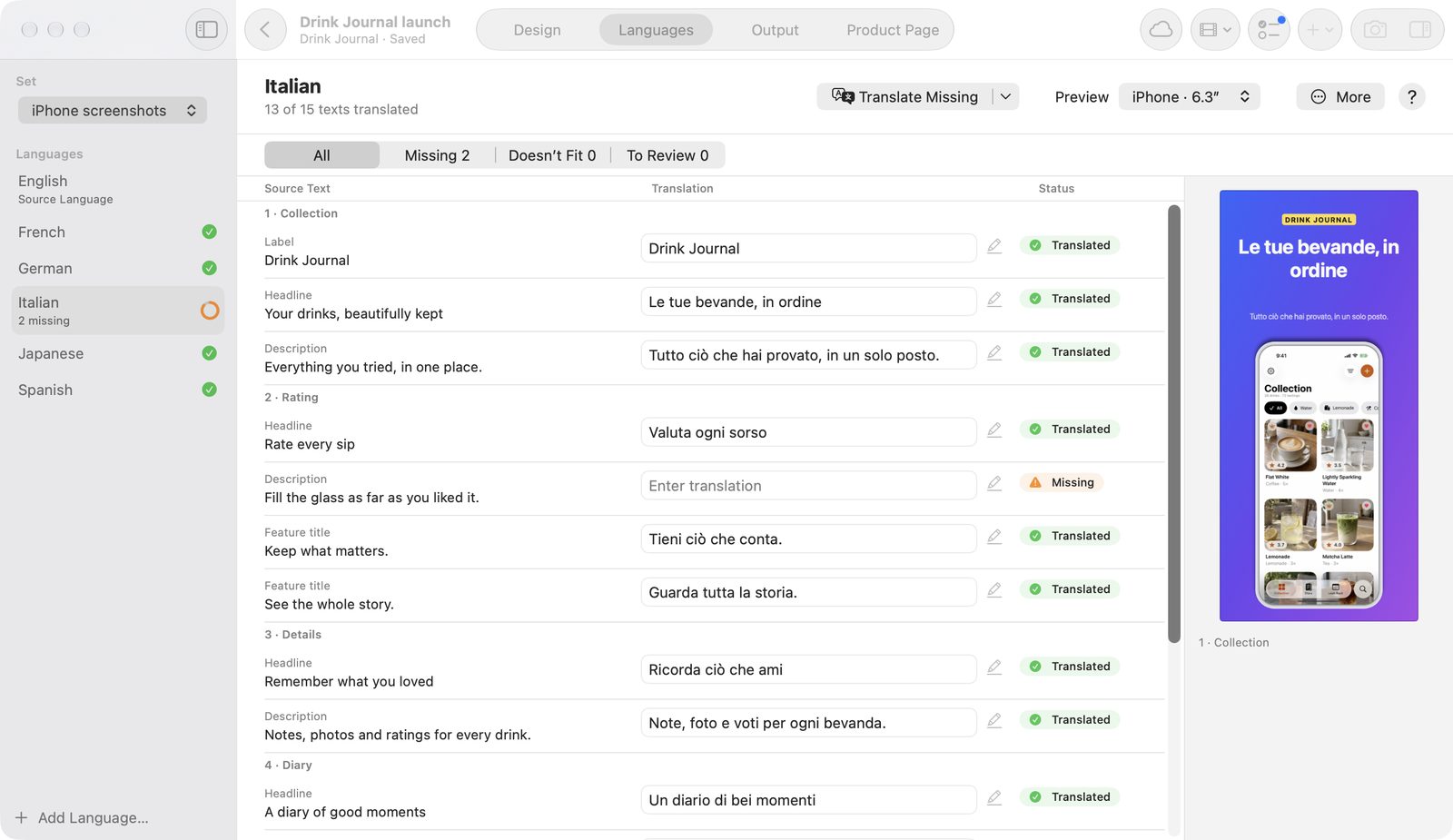
- Choose a language.
- Click Translate Missing. If texts are missing in several languages, Translate All Missing takes them all.
- Wait, or switch mode: the run continues.
- Stop halts it. Finished languages stay.
Results come in per language right away, each as its own undo step. If Apple Translation doesn't translate a language, Pitching Set says so before starting (Not Every Language Can Be Translated). If only a language pack is missing, the run starts and macOS asks before downloading.
What stays protected
- existing translations
- texts left empty on purpose (No Text)
- your own format texts
- locked objects
- texts you change during the run
The app translates accent words separately and sets them again. Where that isn't safe, the row asks you to check the accent.
When translating screenshots, the app also translates empty product page fields from the source language. Name and URLs carry over where they're empty.
Automatic translations can be wrong. Read them before you use them. To Review finds them, and Mark as Reviewed and Mark All as Reviewed record your progress.
Edit texts by hand
Each text row shows the source text and an input field.
- The Show filter offers All, Missing, Doesn’t Fit, and To Review.
- ⇥ or Return go to the next field, ⇧⇥ to the previous one. ↑ and ↓ change field from the first or last line.
- Accent (⌘E) adds or removes asterisks around the selection.
- Saving happens as you type and when you leave the field. An emptied translation counts as missing again.
A row's menu contains Use Source Text, Show Without Text, Remove Translation, Show in Design, and Import Key….
The row shows its state: Source, Translated, No Text, Missing, or Review. Language-neutral texts such as “01” never count as missing. The columns are Content, Source Text, Translation, and Status.
If you type in Design in a language other than the source language, you write that language's translation automatically.
Under Preview, choose which format the preview shows for each image.
A missing translation is never silently replaced
If a translation is missing, the output shows no text rather than the source text. The canvas marks the spot with Translation missing, the export check reports Required translation is missing. and blocks exporting this output. Show Without Text is the deliberate way to leave a text empty.
Texts per format, language, and output
A translation applies in all formats of its language; position, size, and colors stay shared. For your own values, choose the level at the top of the inspector in Design.
- This Device Format: a text applies in all languages of this format that have no translation of their own. Automatic translation leaves it alone.
- This Output Only: a text only here, such as a line break only in the iPhone format in French.
If a row says Custom text in: …, these formats use their own wording. Use This Text Everywhere removes it. Where the Text Comes From shows the level.
Change the source language
When a translation is complete, choose Make Source Language for it under More. Its texts become the starting point, and the previous source language becomes a translation. Every image stays as it is. The source language is also the language you export for free.
Remove a language
Choose Remove Language in a language's context menu or Remove Language… under More, and confirm. All outputs and texts of this language in the set disappear. ⌘Z brings them back as long as the project is open. You can't remove the source language.
Import screenshots per language
A folder with one subfolder per language fills all languages at once. That needs Pro.
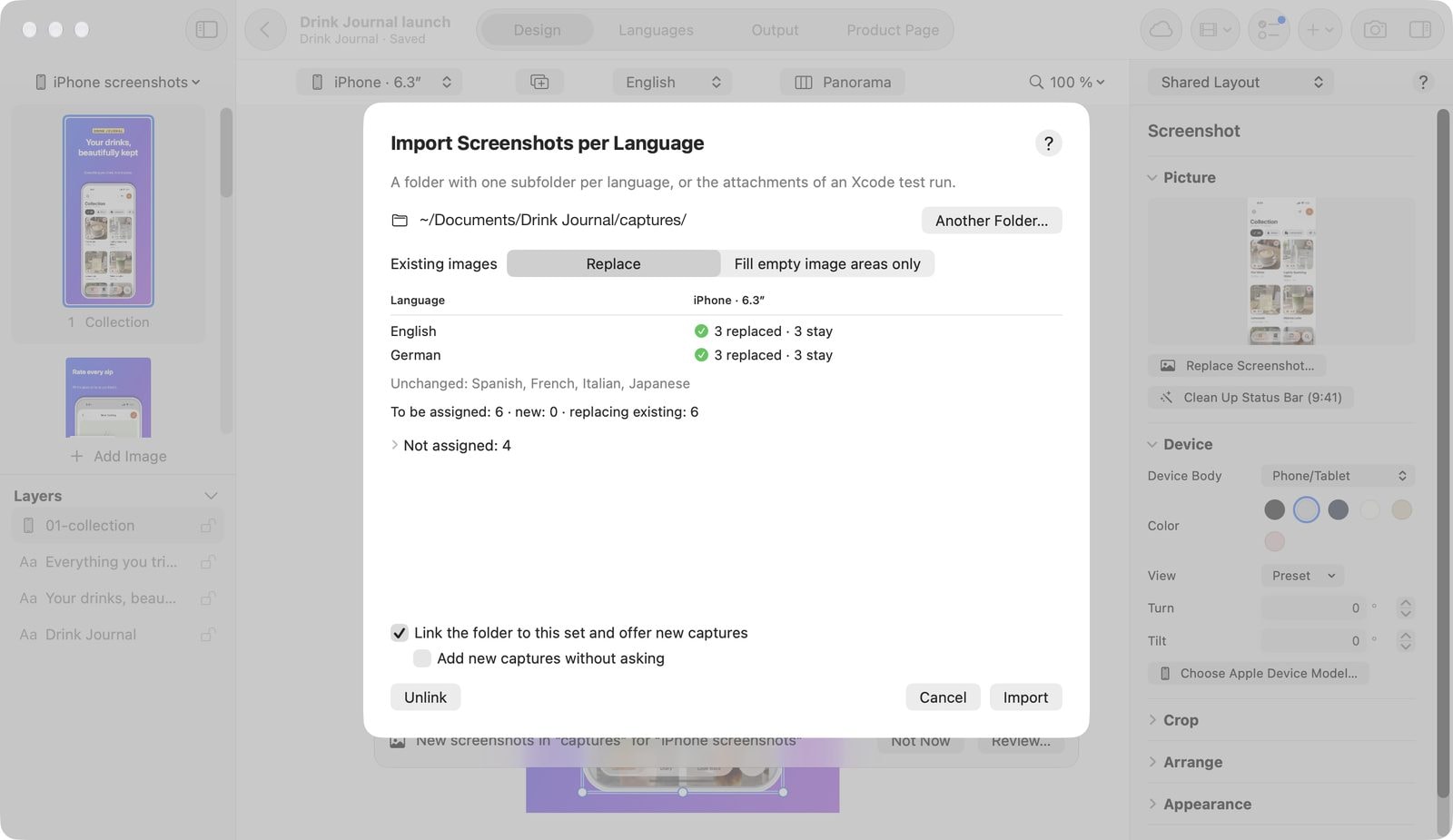
- Under More, choose Import Screenshots per Language….
- Click Choose Folder… and pick the folder with subfolders such as
de-DEanden-US, the way fastlane snapshot writes them. - Under Existing images, choose Replace or Fill empty image areas only.
- Check the table. For each language and format it shows how many images are new, replaced, or missing, and gives the reason for leftover files.
- Click Import.
The format follows from the image size with 8 % tolerance, the image from the number in the file name: “03_…” goes to image 3. Each folder takes up to 200 PNG or JPEG files. The import creates missing languages, marked New Language. ⌘Z takes it all back in one step.
Link a folder
In the same sheet, tick Link the folder to this set and offer new captures, and choose Link Only if you don't want to import anything now.
When new screenshots land in the folder, a bar appears with Review… and Not Now. With Add new captures without asking, Pitching Set adds them right away, as one step ⌘Z takes back. Unlink ends the link. Check Again and Another Folder… are there too.
Without Pro, importing pauses: the bar shows See Pro…, and folder and project stay as they are.
From Xcode UI tests
- Export your test run's attachments in Terminal with
xcrun xcresulttool export attachments --path X.xcresult --output-path Screens. - In the import, choose the
Screensfolder per language.
The language comes from the test plan's configuration or from the attachment name, such as “de-DE-01_Home”. “01_” sets the image. Attachments from failed tests stay out. The app never runs xcrun itself.
String catalogs and text files
You can write screenshot texts to a string catalog and read them back. That needs Pro.
- File → Export Texts → Screenshot Texts as String Catalog… saves an
.xcstringsfile. - File → Import Texts… or More → Import Texts from String Catalog… reads translated texts.
- Import Key… in a row's menu sets which key belongs to this text. The default is the object ID.
Values in the set's language fill empty base texts; other languages fill missing translations. Existing texts stay and are counted. Plural and variant values are counted and reported, not guessed. Language codes are never used as paths.
If a file can't be read, the app reports This file isn’t a readable String Catalog.
The app's own interface
Pitching Set follows the system language. The interface comes in 14 languages: German, English, Spanish, French, Italian, Japanese, Korean, Dutch, Polish, Portuguese (Brazil), Russian, Turkish, and Chinese simplified and traditional. Otherwise it appears in English. The privacy policy comes in German and English.
Free and Pro
For free, you can add any number of languages, translate by hand, and view them in Design. You can export only the set's source language for free, which you change with Make Source Language.
Translate Missing and all Apple Translation runs, exporting further languages, Import Screenshots per Language…, linked folders, and string catalog export and import need Pro. Outputs in other languages carry PRO.
Sending further languages to App Store Connect needs Pro as well.