Pitching Set
App Store Screenshot Format and Export
Last updated:
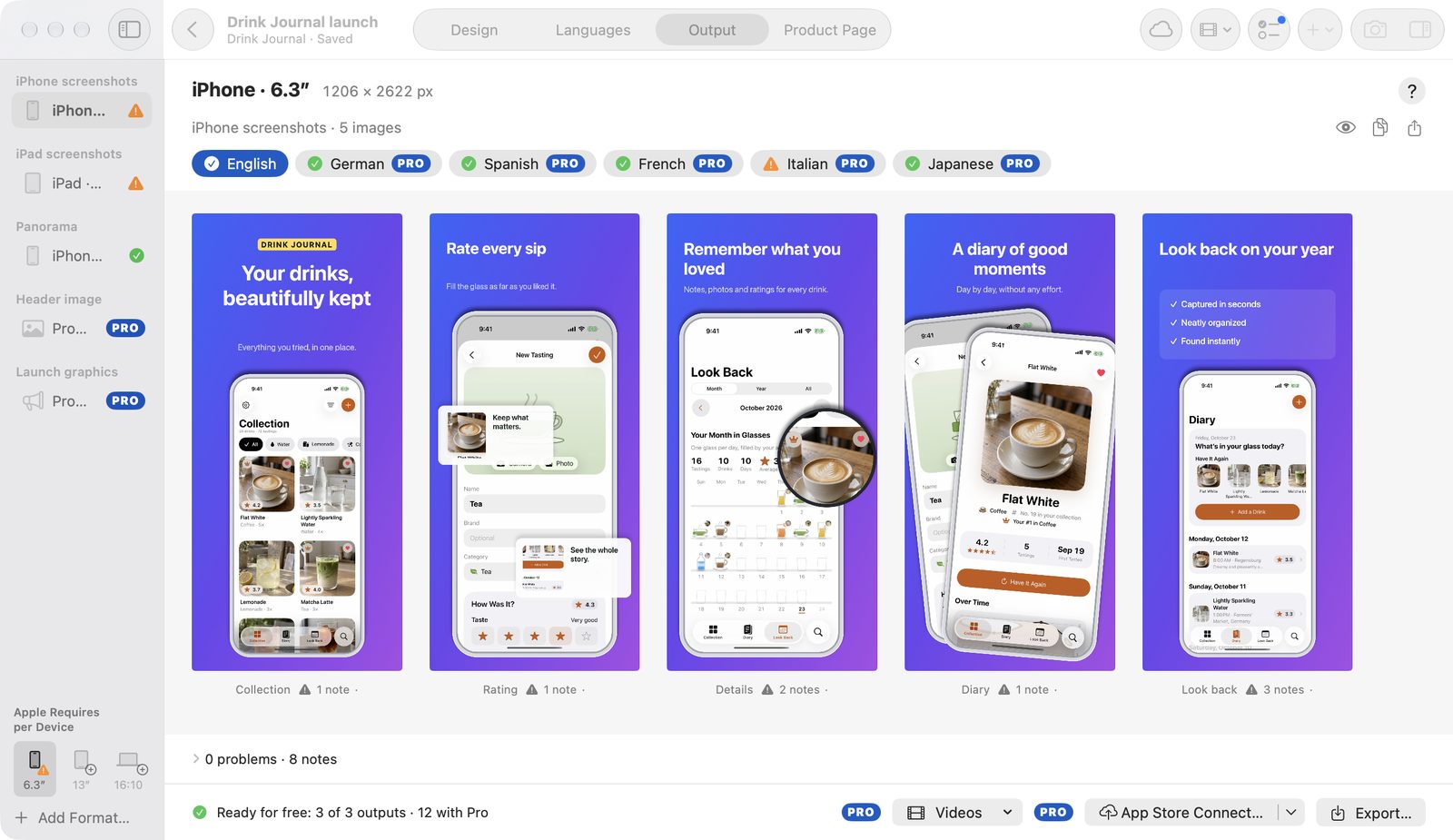
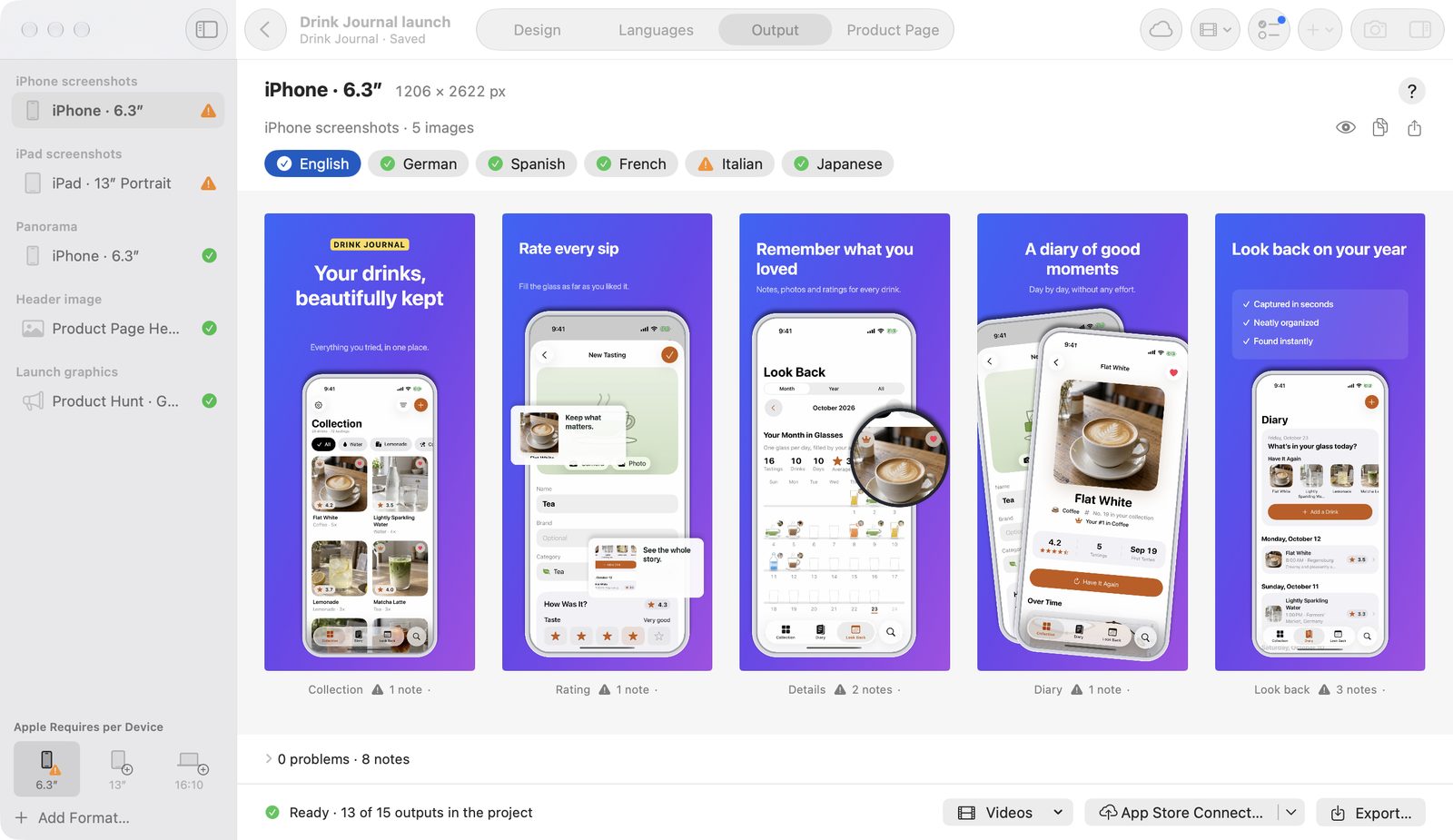
In Output mode (⌘3), you see every image at full size, fix problems, and export PNG files in the right App Store screenshot format and resolution. Pitching Set checks all outputs after each change.
Read the state
The left bar shows each set, including treatments, and one row per format with a green check or “x/y”.
- Language chips show Ready, Being checked, or the number of problems for each language.
- The header names the format, pixel size, and set.
- The status line sums up, such as “Everything ready: 24 outputs”.
- Problems and notes with their location appear below the images.
- Fix jumps to the spot in Design and highlights the setting. It straightens frame errors right away.
- Check shows a note. Ignore takes a word that isn't in any dictionary out of the check for this project; ⌘Z reverses that.
Export
Export writes all ready outputs as PNG files to a new folder and names what it leaves out.
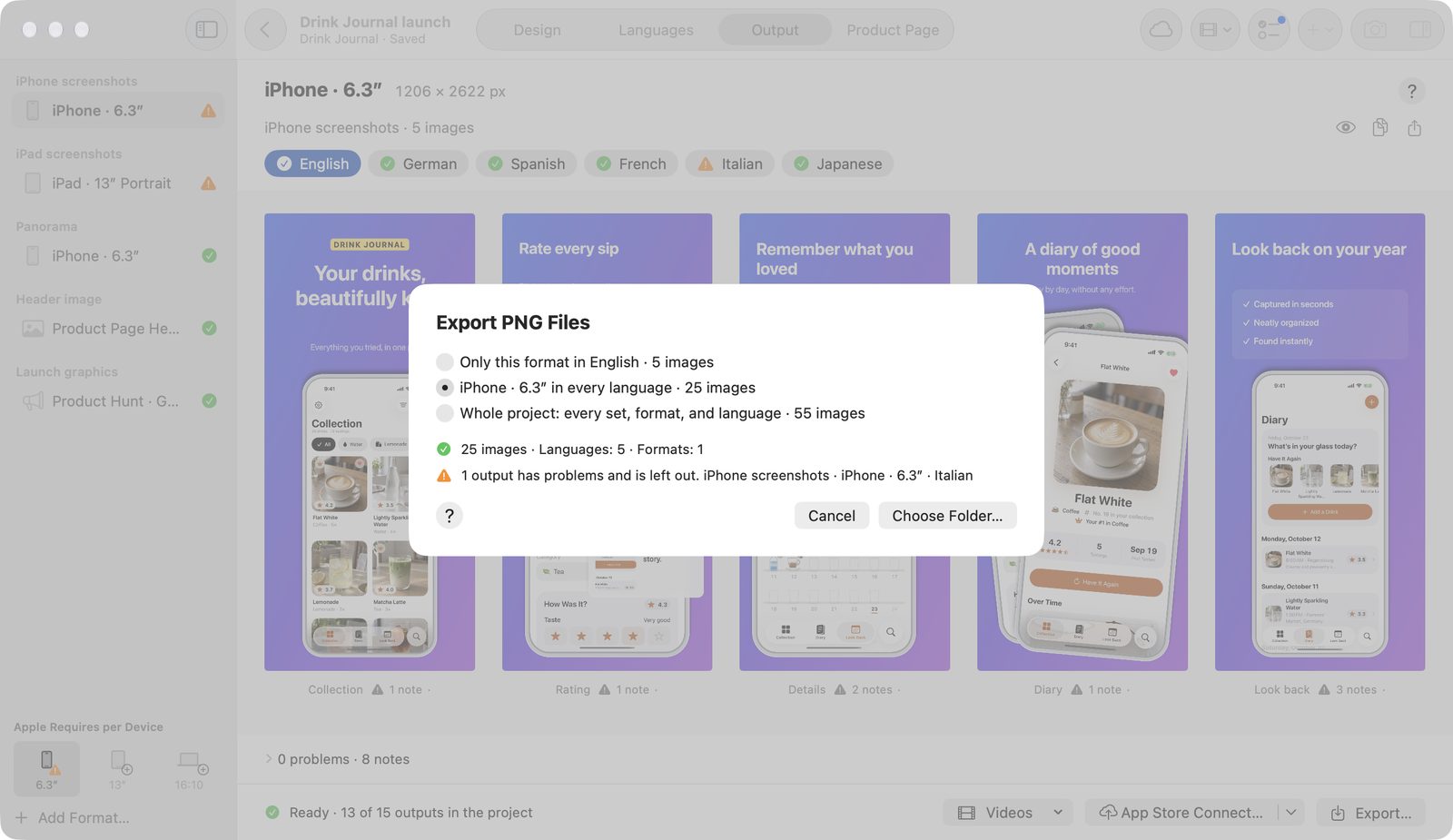
- Click Export… or choose File → Export Images… (⇧⌘E).
- Under Scope, choose this format in one language, this format in every language, or Whole project: every set, format, and language.
- Click Choose Folder… and pick the destination. Click Export Here there.
- Read the summary: the number of images, languages, and formats, plus outputs left out, with reasons.
- Wait. Cancel stops without leaving anything half-finished.
- Click Show in Finder to open the folder.
If the app is in the background, the notification Export finished appears. During a longer export, the Dock icon shows progress too.
How the files are arranged
<Set> YYYY-MM-DD HH.mm/<Language>/<Format> (W × H)/NN Image.pngWith several sets, a project folder sits on top. Treatments are named “<Set> (Treatment B)”. Existing folders are never overwritten. Each set includes a manifest.json with path, output, image, language, format, size, and SHA-256 for each file.
Each PNG has exactly the format's pixel size, sRGB, 8 bits, 72 dpi, and no alpha channel.
Export check
The export check separates problems that block the export from notes that block nothing.
Problems
| Message | Remedy |
|---|---|
| Screenshot missing. | Add a screenshot |
| Required translation is missing. | Translate in Languages or choose Show Without Text |
| Image is missing or unreadable. | Add the image again |
| Locate the original frame. It is unavailable or has changed. | Locate File… |
| The original frame is distorted, rotated, or cut off at the image edge, which Apple’s guidelines rule out. “Fix” straightens it. | Fix |
| A size or value of this element is out of range. Check the element. | Check the element in the inspector |
| Project or image data is invalid. | Reopen the project or restore it from a package |
An empty visible placeholder also blocks an output. The individual messages are in Troubleshooting.
Notes
-
Text doesn't fully fit in its text box.
-
A picture or frame gets scaled up.
-
Text or graphics lie on top of an Apple original frame.
-
A word isn't in any dictionary for its language. The check runs only on your Mac and skips languages without a dictionary.
-
More screenshots than the store takes per device. According to the app, App Store Connect takes up to 10 per device size, other stores up to 8.
-
Text stands out too little from the background. The check measures against what lies behind the letters and reports contrast below 4.5:1, or below 3:1 from 18 pt or bold (WCAG 2.x AA). Texts with a strong shadow are left out.
Content Apple doesn't want in store images
For App Store and event formats, the check warns about prices and discounts, web addresses, the © symbol, other platforms, and Apple awards. As of November 6, 2026. This helps you check; it's no promise of approval.
Single images
- Copy as Image in the context menu puts the image on the clipboard at full size.
- Save as PNG… saves one image, Share… shares it.
- Drag an image to the Finder or a browser to drop it as a PNG (“NN Image.png”).
- Double-click an image or choose Open in Design to edit it.
- ← and → select images, several with ⇧. Home and End go to the start and end.
- Space shows Quick Look, Return opens the image, Esc deselects.
Present a set
View → Present Set (⌥⌘P) shows the selected set on the whole screen. The arrow keys change the image, Esc ends. This helps with panoramas and when you agree on a design with others.
More buttons in Output
-
Videos contains App Preview… and Promo Video….
-
Apple Requires per Device names the required formats. See Sizes for details.
-
App Store Connect… opens sending.
-
For treatments, the button reads To Product Page Test…, for a custom product page To Custom Product Page….
Project packages
A .shotstudio project package holds the project with all its images, so you can open it on another Mac or pass it on.
- Choose File → Export Project… or a project card's context menu.
- Pick the location. Open changes get saved first, and progress runs along.
To import, use Import Project… (⌘O) or drop the file. The app checks version, IDs, checksums, and value ranges, converts older versions, and rejects duplicate projects. It opens projects from elsewhere in the background.
The package doesn't include Apple original frames (only their description; locate them again on another Mac), video recordings and music, or App Store Connect keys.
Free and Pro
For free, you export, copy, and drag out the required formats for iPhone, iPad, and Mac in the set's source language. Project packages and Present Set are free too.
Outputs in further languages and formats carry PRO. A bar above the actions says why the output shown is Pro. Without Pro, the export leaves them out and says how many, with See Pro…. If your choice holds only Pro outputs, the button reads Unlock Pro….